
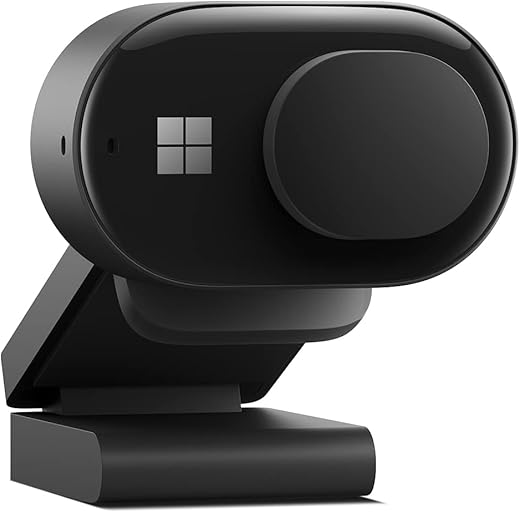
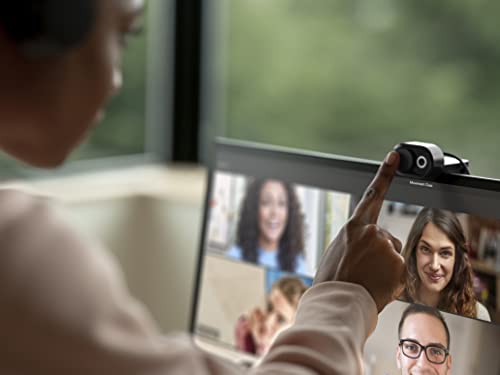
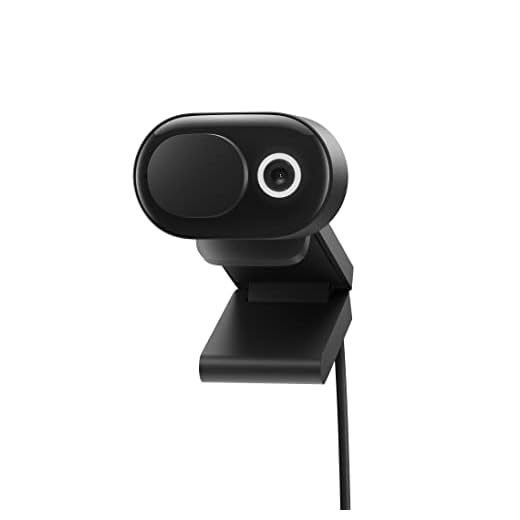
Microsoft Modern Webcam
Microsoft Modern Webcam Price comparison
- All prices mentioned above are in United States dollar.
- This product is available at Amazon.com.
- At amazon.com you can purchase Microsoft Modern Webcam for only $94.99
- The lowest price of Microsoft Modern Webcam was obtained on October 16, 2026 23:42.
Microsoft Modern Webcam Price History
Microsoft Modern Webcam Description
Discover the Microsoft Modern Webcam: Your Ultimate Video Streaming Companion
The Microsoft Modern Webcam brings high-quality video to your virtual meetings and streaming sessions. With its sleek design and advanced features, this webcam is perfect for professionals and content creators alike. Searching for the best price? Check our detailed price comparisons and see how the Microsoft Modern Webcam stacks up against the competition!
Main Features of the Microsoft Modern Webcam
- Autofocus: Enjoy a crisp and clear image with autofocus technology that ensures you look your best, no matter your distance from the camera.
- Low Light Adjustment: Take advantage of the low light feature that optimizes your video quality even in dim environments, making it ideal for evening meetings or dimly lit rooms.
- Compact Design: Weighing only 3.11 ounces and measuring 1.99 x 1.42 x 2.94 inches, this webcam is portable and easy to set up anywhere.
- Versatile Compatibility: The Microsoft Modern Webcam is compatible with various video conferencing applications, making it suitable for both work and play.
- Quality Build: Crafted by Microsoft, this webcam promises durability and reliable performance, ensuring it will be a staple in your tech lineup for years to come.
Price Comparison Across Suppliers
When shopping for the Microsoft Modern Webcam, it’s crucial to find the best deal available. Our price comparison tool offers insights into multiple suppliers, allowing you to easily compare prices and select the option that suits your budget. Prices can vary, so take advantage of our comprehensive analysis to save on your purchase!
6-Month Price History Trends
Analyzing the 6-month price history chart, you will notice some notable trends for the Microsoft Modern Webcam. Prices have shown stability, with occasional dips making it a great time to buy. By keeping an eye on these trends, you can ensure that you’re making an informed purchase decision.
What Customers Are Saying About the Microsoft Modern Webcam
Customer reviews of the Microsoft Modern Webcam reflect a mix of positive feedback and a few areas of improvement. Many users rave about the autofocus feature, praising how it keeps them in focus without manual adjustments. The compact size and ease of setup are also frequently highlighted as major benefits.
However, some users have mentioned that the low light performance, while good, may not fully meet the expectations of those in extremely dim environments. Despite this, the overwhelming consensus is that the webcam offers excellent value for money and solid performance for both casual and professional use.
Exploring Unboxing and Review Videos
Curious to see the Microsoft Modern Webcam in action? Several YouTube creators have posted detailed unboxing and review videos. These visual demonstrations provide an inside look at the webcam’s features and real-world performance. They can help you further assess whether this webcam meets your needs.
Why You Should Choose the Microsoft Modern Webcam
If you’re looking for a reliable, sleek webcam that performs well across various conditions, the Microsoft Modern Webcam is a fantastic choice. Its blend of autofocus, low-light capabilities, and compact design make it suitable for professionals who demand quality and performance.
Additionally, the ability to easily compare prices ensures you are getting the best deal possible without compromising quality. A deeper dive into customer reviews can further reinforce your decision, showcasing the positive experiences of countless satisfied users.
In conclusion, whether you require a webcam for business meetings, online classes, or streaming, the Microsoft Modern Webcam is designed to enhance your video experience. Don’t miss out on the opportunity to improve your online presence today!
Compare prices now!
Microsoft Modern Webcam Specification
Specification: Microsoft Modern Webcam
|
Microsoft Modern Webcam Reviews (7)
7 reviews for Microsoft Modern Webcam
Only logged in customers who have purchased this product may leave a review.
Andreia –
good production, but without X-ray face-ID funtion.
MD ASHIQUR RAHMAN –
This camera is 100% compatible with Windows, Mac, and Linux. HOWEVER, the built-in microphone is disabled by default, and it must be enabled using the crappy Windows “Accessory Manager” software. Once enabled, it stays enabled and you never have to use the software again. What a stupid system to disable it by default.
The image quality and sound quality are good.
dlaw –
Évidemment parfaitement intégré à l’environnement Windows.
Un peu onéreuse pour une webcam mais franchement je ne regrette pas l’achat.
Les réglages de l’image, la mise au point et la facilité d’installation en font ses points forts.
Coincoin –
I bought this webcam to replace my old Logitech, which had stopped working, and I was very surprised with the quality.
Excellent webcam. It is easy to set up and simple to use, and it does the job very well. It has better video quality than the more expensive cameras.
Andreia –
Ich habe mich für die Microsoft Webcam und gegen Logitech entschieden, weil ich keine extra Logitech Software wollte und die Kamera von Microsoft und für Ms Teams zertifiziert ist. Die Microsoft Cam funktioniert auch ohne Software direkt an Windows 10. Mit der Accessories App im Microsoft Store lassen sich einige Webcam Einstellungen (u. a. HDR, Weissabgleich, Schärf, Weichzeichnung) vornehmen.
Die Qualität war out of the box annehmbar, allerdings schlechter als meine Samsung S9 Kamera (zu weichgezeichnet) . Nach Erhöhung der Schärfeeinstellung ist das Bild vergleichbar gut.
Alles in allem ein starkes Upgrade im Vergleich zur Webcam am Arbeitslaptop.
Haptisch ist das Gerät relativ schlicht, wird überm Monitor aufgehängt. Hat bei mir auf einem 27″ Widescreen passabel funktioniert und verichtet seinen Dienst. Die Kamera hat m. E. recht starken Weitwinkel, sodass man recht viel Breite vom Hintergrund erkennt, daher habe ich den Monitor mit Webcam gerade gestellt und den zweiten Monitor schräg, um den Bildschirmausschnitt fest zu legen.
Die Kamera hat auch ein Mikrofon, welches man aber erst in der Accesories App aktivieren muss. Ein unerwarteter positiver Effekt, früher hatte ich noch extra einen Speaker an und abgestöpselt. Das brauche ich nicht mehr, weil die Mikrofon ausreichende Qualität hat für MS Teams.
Die Webcam ist an einem Aten USB Switch angeschlossen und funktioniert aktuell problemlos mit Desktop und Notebook.
Für MS Teams Zwecke ist es völlig ausreichend und ich würde die Webcam wahrscheinlich wieder kaufen.
Ich meine die Webcam unterstützt jedoch für 1080p nur 30fps, falls mehr benötigt wird, Achtung. Für meine Zwecke und einer 16k DSL Leitung war er nicht ausschlaggebend.
armen –
The camera manufacturing quality is exemplary as one would expect from Microsoft equipment, and there’s no doubt that the video quality of the camera is excellent, but I also need to point out several things.
I had trouble finding out the best way to mount the camera on my monitor. My monitor is a little deeper because it is a high-speed 3D enabled monitor. The camera is designed to fit slimmer monitors, so I’ve had to arch the camera to get it to sit in a way that won’t fall off. It took a little bit of experimenting to find the best way to get it to be the most stable (see photos). The camera looks as if it is in danger of being in front of the screen in the photos, but it’s actually just above screen height so not in the way.
My second issue involved getting the microphone to work. I had read other reviews so realised that I needed the Microsoft Accessory app, and getting the app wasn’t at-all difficult because I run Windows 11, and after a few minutes it loaded the app for me (while I was looking at the instructions of how to get it). Looking down the options on the right side of the app I saw the Webcam Microphone option, and as mentioned in other reviews it is switched off by default. I switched it on and was surprised to see a message saying that if I switch it on it is no longer certified for use with Microsoft Teams… What the…?
I don’t use Microsoft Teams, I use Skype, so I can only assume that Microsoft Teams controls the microphone directly, for reasons of security. Fair enough, that’s an extremely good reason to have it default to off. I acknowledged the Microsoft Teams warning, then saw a restart camera dialogue. I restarted the camera to apply the microphone setting, closed the Microsoft Accessory app, started Skype and went to Settings | Audio and Video to check that the camera was selected, and the microphone worked. The camera image looked excellent, but the camera’s microphone didn’t appear in the options so obviously wasn’t being seen…
I closed Skype and restarted the Microsoft Accessory app. The microphone was showing as being turned off. The setting had been lost. So, this time I turned the microphone on, clicked “Later” instead of “Restart Camera” on the dialogue, then I physically unplugged the camera, waited 3 seconds, and plugged it in again (I had manually restarted the camera instead of doing it in software). I closed the Microsoft Accessory App and restarted it. This time the microphone option was turned on. I closed the Microsoft Accessory app and restarted Skype. Now in the Skype Settings | Audio & Video, the microphone was visible in the list of options (yay!), and when selected worked very well. From that point on everything has worked as it should.
To be honest, I can’t be sure that the issue with the microphone wasn’t my fault, but at least if you experience the same issue, you can see how I got around it so won’t be without an otherwise excellent webcam.
I feel mean giving this camera 4 stars because it’s excellent now it’s all sorted, but I had to deduct 1 because of the less than straight-forward setup, and also because it doesn’t suit all very modern monitors. It needs the ability to be extended to cater for wider monitors. It is in every other respect worthy of 5 stars, so try not to be put off by what I experienced.
MD ASHIQUR RAHMAN –
It’s really good quality, also have built-in microphone.
All together this one worth it.