
Best Laptops With Parental Controls for Students 2026
The best laptop with parental controls for most school-age students is a Chromebook supervised through Google Family Link. ChromeOS gives parents straightforward tools for screen-time limits, website filtering, app approvals and Chrome extension controls, while still covering Google Classroom, Docs, web research and video classes. Our best overall hardware pick is the ASUS Chromebook Plus CX15, while Lenovo’s Chromebook i 15 is the more affordable ChromeOS option.
Windows and macOS can also provide strong family controls, but they work differently. Microsoft Family Safety offers device schedules, app and game limits, spending controls and web filtering on Windows, while Apple’s Screen Time and Family Sharing provide app limits, schedules, website restrictions and purchase controls on a Mac.
The important point is that parental controls are mainly an operating-system and account feature, not something built into a particular Acer, ASUS, Lenovo, Microsoft or Apple chassis. The right choice therefore depends on both the student’s coursework and the kind of supervision the family actually needs.
Students who mainly need the lowest-cost hardware should also compare our affordable laptops for students before paying extra for performance their coursework will not use.
Quick Answer: Best Laptops With Parental Controls
Best Overall: ASUS Chromebook Plus CX15 — strong ChromeOS hardware combined with Google Family Link supervision for browser-first schoolwork.
Best Budget: Lenovo Chromebook i 15 — a lower-cost 15-inch Chromebook that benefits from the same Family Link parental-control system.
Best Windows: Microsoft Surface Laptop 13-inch — flexible Windows software support with Microsoft Family Safety for screen time, apps, games, spending and supported-browser filtering.
Best Mac: Apple MacBook Neo 13-inch — an affordable current Mac with Screen Time, Family Sharing and strong everyday student hardware.
Easiest Control System: ChromeOS + Google Family Link — especially useful for younger, browser-first students using a parent-supervised personal Google account.
How We Chose These Student Laptops
We evaluated both sides of the purchase: the laptop itself and the parental-control system available on its operating system. Hardware factors included current U.S. availability, screen size, memory, storage, portability, school-software compatibility and price. Family-management factors included screen-time scheduling, app restrictions, website filtering, purchase controls, remote management and obvious limitations.
No parental-control system should be treated as impossible to bypass. Older students may understand account settings, browser differences or alternative devices well enough to work around poorly configured restrictions. Parental controls work best as a combination of technical boundaries, age-appropriate independence and clear family expectations.
We also gave strong weight to school software. The strongest parental controls are not useful if the student cannot run an application required by a class.
Parental-Control Platforms Compared
| Platform | Screen Time | App Limits | Web Filtering | Purchase Controls | Remote Parent Management | Main Limitation |
|---|---|---|---|---|---|---|
| ChromeOS + Family Link | Yes | Yes | Strong Chrome controls | Google Play purchases | Yes | School Workspace account itself is managed by the school, not Family Link |
| Windows + Family Safety | Yes | Yes | Yes, through supported browsers | Yes | Yes | Web filtering currently depends on supported browsers such as Edge |
| macOS + Screen Time | Yes | Yes | Yes | Yes | Yes with Family Sharing | Mac software compatibility may not fit Windows-only coursework |
Best Student Laptops With Parental Controls Compared
| Laptop | Best For | Platform | Display | Memory | Price Position | Main Caveat |
|---|---|---|---|---|---|---|
| ASUS Chromebook Plus CX15 | Best overall | ChromeOS / Family Link | 15.6-inch | Up to 16GB | Midrange Chromebook Plus | ChromeOS software limitations |
| Lenovo Chromebook i 15 | Best budget | ChromeOS / Family Link | 15-inch class | Configuration dependent | Budget | Large chassis for daily carrying |
| Microsoft Surface Laptop 13-inch | Best Windows | Windows / Family Safety | 13-inch PixelSense | 8GB / 16GB | Premium student | Windows-on-Arm compatibility needs checking |
| Apple MacBook Neo 13-inch | Best Mac | macOS / Screen Time | 13-inch Liquid Retina | 8GB | $599 starting price | Windows-only school software may not work |
Compare Current Student Laptop Prices
Student-laptop prices change frequently with back-to-school, holiday and manufacturer promotions. Compare current offers using the live shopping block below, but choose the operating system first. Saving $100 on a laptop that cannot run required school software is not a real saving.


The Best Laptops With Parental Controls for Students
1. ASUS Chromebook Plus CX15 — Best Overall
Best for: Students whose schoolwork revolves around Google Classroom, Docs, browser applications, online research and video calls.
The ASUS Chromebook Plus CX15 is our strongest overall choice because it combines a more capable Chromebook Plus hardware tier with the simplest built-in family-supervision environment in this comparison.
ASUS currently offers the 15.6-inch CX15 family with up to an Intel Core 3 N355 processor and up to 16GB of memory. Wi-Fi 6E and HDMI make it practical for home study, external displays and modern wireless networks.
The more important feature for this article is ChromeOS itself. When a child signs in with a personal Google account managed by Family Link, parents can set content filters, allow or block individual websites, approve access requests and control whether Chrome extensions can be installed. Google also disables Incognito mode for a supervised child account.
Family Link can additionally manage screen time and supported app access from the parent’s device. That creates a relatively coherent system because the Google account, browser and Chromebook operating environment are closely connected.
The tradeoff is application compatibility. Students who need specialist Windows software, desktop creative tools or programs supplied by a school department should verify ChromeOS compatibility before buying.
Pros
✅ Strong Google Family Link integration
✅ Incognito is disabled for supervised child accounts
✅ Website and extension controls are straightforward
✅ Chromebook Plus hardware provides more multitasking headroom
✅ Large 15.6-inch screen works well for homework at a desk
Cons
❌ ChromeOS cannot run every Windows or macOS application
❌ 15.6-inch chassis is less portable than compact student laptops
❌ Exact CX15 configurations can differ in processor, memory and storage
Who should skip it: Students whose coursework explicitly requires conventional Windows applications or specialist desktop software.
Alternative: Microsoft Surface Laptop 13-inch offers a fuller Windows environment with Microsoft Family Safety.
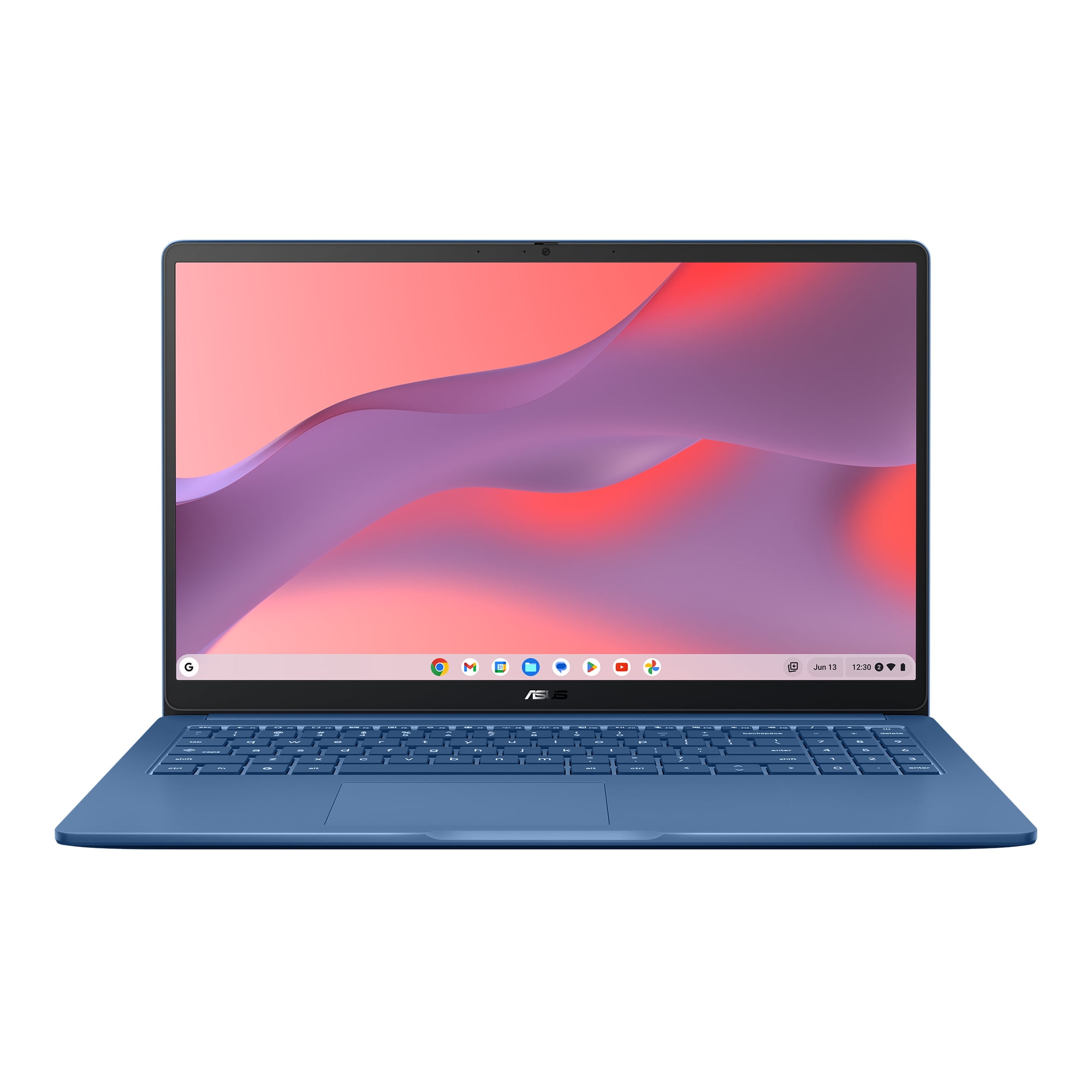
ASUS Chromebook CX15 15.6" FHD N50 128GB — Boost your productivity with Intel performance, roomy 128GB storage for apps and files, and a slim‑bezel NanoEdge display for more immersive viewing on the move. Ready to upgrade your portable workspace? Order yours today and take powerful, smooth computing wherever life takes you.
2. Lenovo Chromebook i 15 — Best Budget Pick
Best for: Families that want ChromeOS parental controls at a lower hardware price and do not need a small campus-focused laptop.
The Lenovo Chromebook i 15 gives families access to essentially the same Google Family Link supervision model as the ASUS Chromebook Plus, but Lenovo currently positions the exact 83T10001US model far lower in price.
That matters because parental controls themselves do not become stronger when you buy a more expensive Chromebook. A supervised Family Link account can still use screen-time restrictions, Chrome website controls, app permissions and extension restrictions on a lower-cost ChromeOS machine.
The 15-inch size also gives students more physical room for documents and browser windows. It works particularly well as a homework machine that spends most of its life on a desk.
The compromise is portability and performance. A budget Chromebook should be bought for Google Classroom, browser-based schoolwork, documents and video calls—not because it is expected to become a workstation for advanced creative or engineering applications.
Pros
✅ Lower-cost route to Google Family Link supervision
✅ Large display is useful for homework
✅ ChromeOS is simple for browser-first schoolwork
✅ Current Lenovo pricing can be substantially below premium student laptops
Cons
❌ Larger chassis is less convenient for daily school transport
❌ Budget hardware has less performance headroom
❌ ChromeOS remains unsuitable for some specialist school applications
Who should skip it: Students who carry a laptop between many classes each day may prefer a smaller machine, while students needing desktop software should choose Windows or macOS as appropriate.
Alternative: ASUS Chromebook Plus CX15 when stronger Chromebook hardware is worth the additional cost.
Ready to upgrade your workspace? The Lenovo Chromebook 15-inch in Luna Grey delivers a spacious 15.3″ 16:10 WUXGA display, Intel® N150 performance, 4 GB RAM and 128 GB storage — perfect for productivity on ChromeOS. Enjoy comfortable typing with a full numpad and smooth navigation via the precision touchpad.
Buy now and boost your productivity — shop the Lenovo Chromebook 15″ (Luna Grey) today!
3. Microsoft Surface Laptop 13-inch — Best Windows Laptop With Parental Controls
Best for: Older students who need Windows applications, Office software or broader school-software compatibility.
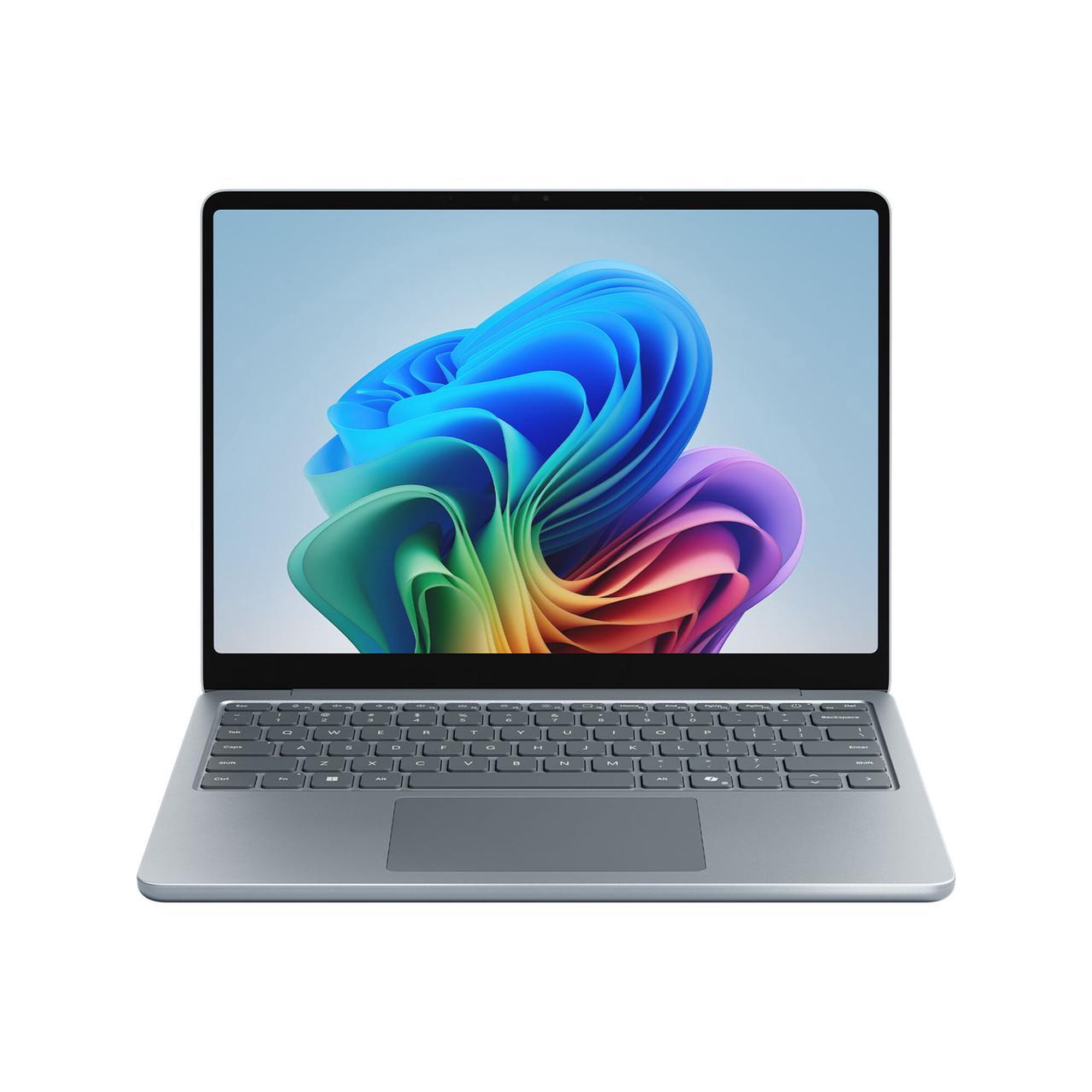
The Surface Laptop 13-inch is our Windows pick because it combines a highly portable student design with Microsoft Family Safety built around the same Microsoft-account system used by Windows.
The current laptop weighs 2.7 pounds and uses an eight-core Snapdragon X Plus processor. Microsoft offers 8GB and 16GB memory configurations with storage up to 512GB. The 13-inch PixelSense display, 1080p webcam and claimed all-day battery range make the device well suited to moving between classes and study locations.
Family Safety gives parents a broader set of Windows-level controls than simply installing a filtered browser. Family organizers can establish screen-time limits, review activity, control apps and games and manage spending or purchase permissions.
Web filtering needs a significant qualification. Microsoft’s website and search filters work through supported browsers, currently centered on Microsoft Edge. When inappropriate-site filtering is enabled, Microsoft can block unsupported browsers unless a parent manually allows them, but Family Safety should not be described as universal network-level filtering across every browser and every connection.
Another consideration is the Snapdragon processor. Mainstream Windows applications work well on modern Windows-on-Arm systems, but students whose courses require old drivers, niche utilities or specialist applications should verify compatibility before purchase.
Pros
✅ Microsoft Family Safety handles screen time, apps and purchases
✅ Wider academic software support than ChromeOS
✅ Lightweight 2.7-pound design
✅ 8GB and 16GB configurations available
✅ 13-inch format is easy to carry between classes
Cons
❌ Website filtering relies on supported browsers such as Edge
❌ More expensive than a basic Chromebook
❌ Windows-on-Arm compatibility should be checked for specialist software
Who should skip it: Younger students doing almost everything through Google Classroom may not need the added cost or complexity of Windows.
Alternative: Families wanting additional Windows options can compare our best HP laptops for students.

Experience the most portable Surface yet — built-in AI, a vibrant 13" touchscreen, and all-day battery life wrapped in a stylish, lightweight design. Ready to upgrade your on-the-go productivity? Shop the Microsoft Surface Laptop 13" 2K Snapdragon now and take intelligent performance anywhere.
4. Apple MacBook Neo 13-inch — Best Mac for Students and Families
Best for: Families already using Apple devices and students whose coursework does not require Windows-only software.
MacBook Neo makes considerably more sense in a family-focused student guide than recommending an expensive MacBook Air simply to gain Apple’s parental controls. Apple introduced Neo in 2026 at a $599 U.S. starting price, or $499 through qualifying education pricing.
The base model uses Apple’s A18 Pro chip, 8GB unified memory and a 256GB SSD. Its 13-inch Liquid Retina display has a 2408 × 1506 resolution and 500-nit brightness, while the laptop weighs 2.7 pounds. Apple rates the battery for up to 16 hours of video streaming.
Parental controls come from Screen Time and Family Sharing. A parent or guardian can manage a child’s Screen Time settings, set device-use schedules and time allowances, restrict apps and websites, configure Content & Privacy controls and review purchase requests through Ask to Buy.
For families already using iPhones and iPads, the advantage is consistency. The same Apple Account and Family Sharing structure can coordinate many of the controls across devices.
The downside is not parental controls—it is platform fit. If a school requires Windows-only applications, engineering utilities or software that does not have a suitable Mac version, choosing a Mac because the family already owns Apple devices can create unnecessary academic friction.
Pros
✅ $599 starting price is unusually accessible for a current Mac
✅ Strong Screen Time and Family Sharing controls
✅ 2.7-pound chassis is easy to carry
✅ Sharp 13-inch Liquid Retina display
✅ Fits naturally into existing Apple-family accounts
Cons
❌ 8GB base memory is modest for demanding long-term workloads
❌ 256GB base storage is limited for large local libraries
❌ Windows-only school software can rule it out completely
Who should skip it: Students whose departments explicitly require Windows applications should follow those requirements rather than choosing macOS for ecosystem convenience.
Alternative: Surface Laptop 13-inch when wider Windows software compatibility is essential.
Apple MacBook Neo 13-inch A18 Pro 8GB/256GB — Ready for whatever your day brings, with the A18 Pro chip built for AI and Apple Intelligence, a brilliant 13‑inch Liquid Retina display, and up to 16 hours of battery life.
Choose from four stunning colors in a durable aluminum design and enjoy pro-level performance at a surprising price.
Order yours today — upgrade your everyday workflow and creativity.
Why Chromebooks Are Easier for Many Parents to Manage
The key advantage is integration. On a Chromebook, Google controls the operating system, the Google account and Chrome itself, so Family Link can supervise more of the everyday environment than it can when Chrome is simply installed on another operating system.
For a supervised child account, parents can configure website filtering, explicitly allow or block sites, approve blocked-site requests and decide whether extensions can be installed. Incognito mode is automatically unavailable when the child is signed into Chrome with an account managed by Family Link.
That does not make a Chromebook automatically “safe.” It simply reduces the number of moving parts a parent needs to configure.
Important: School Google Accounts and Family Link
School accounts need special attention because two separate control systems can exist on the same Chromebook.
A Google Workspace for Education account itself is administered by the school and cannot be managed as a Family Link child account. That means parents should not expect Family Link to override the school administrator’s Google Workspace policies.
Google does, however, allow a school account to be added as a secondary account on a Chromebook where the child signs in first with a personal Google account supervised through Family Link. In that setup, Google states that the parent’s Family Link controls can continue to apply on the Chromebook while the school administrator remains responsible for what the education account itself can access.
Best setup for many families: Use the child’s Family Link-supervised personal Google account as the primary Chromebook login, then add the school-managed account as permitted by the school.
How Microsoft Family Safety Works on Windows
Microsoft Family Safety uses a Microsoft family group. A parent or guardian acts as an organizer, while the child uses a family-member account on the Windows laptop.
Organizers can establish device screen-time limits, control access to apps and games, review eligible activity and manage spending or purchase permissions.
Website filtering is the area parents should understand most carefully. Microsoft’s current web and search filtering works through supported browsers, particularly Edge. When the inappropriate-site filter is turned on, unsupported browsers can be blocked to reduce easy bypass, but parents can also manually allow them.
That makes Family Safety useful, but it is not the same as filtering every packet of internet traffic regardless of browser or account.
How Apple Screen Time Works on a Mac
Apple’s approach is built around Family Sharing and a child’s Apple Account.
Parents can view and manage the child’s Screen Time settings from Family Sharing, create device-use schedules, assign time allowances to categories of apps and limit access to applications or websites.
Content & Privacy restrictions can control account changes, media and web content, app installation and other settings. Ask to Buy also allows parents to approve or reject supported app downloads and purchases.
For households already managing a child’s iPhone or iPad, Mac parental controls will feel familiar because the devices participate in the same broader Apple family structure.
Chromebook vs Windows vs Mac for Students
| Student Need | Best Direction | Why |
|---|---|---|
| Google Classroom / Browser-First School | Chromebook | Simple school workflow and strong Family Link integration |
| Windows-Specific Coursework | Windows | Broadest compatibility with conventional PC applications |
| Apple Household / General Coursework | Mac | Strong Family Sharing integration and good portable hardware |
| Advanced Engineering / Specialist Software | Check Course Requirements First | Specific applications matter more than parental-control preference |
Which Laptop Is Best by Student Stage?
Middle School
A supervised Chromebook is the easiest starting point for many middle-school students when schoolwork is based on Google Classroom and browser tools. Family Link is relatively straightforward to configure, and parents can gradually relax restrictions as the student becomes more independent.
High School
Either Chromebook or Windows can make sense. ChromeOS remains excellent for browser-first schools, while Windows is better when courses begin using desktop applications, programming tools or more advanced Office workflows.
College
Course requirements should dominate the decision. Windows and macOS are usually more flexible once coursework becomes specialized. Parental supervision may also appropriately become less restrictive as the student reaches adulthood.
Age alone should not determine the amount of supervision. Technical maturity, school requirements and the family’s expectations matter more.
What Laptop Specifications Should Parents Buy?
Memory
For a Chromebook, 8GB is a good target for students who multitask across many browser tabs, video meetings and Android apps. Chromebook Plus systems with more memory provide additional headroom.
For Windows, 16GB is preferable when budget allows, particularly for a laptop intended to last several school years.
MacBook Neo’s 8GB base configuration is appropriate for lighter schoolwork, but students anticipating heavier creative or professional workloads may eventually need a more capable Mac.
Storage
ChromeOS is cloud-oriented, so 128GB can be adequate for many students. Windows and Mac users generally benefit from at least 256GB, while 512GB gives more room for local applications and files.
Screen Size
A 15-inch Chromebook is comfortable at a desk but less convenient in a crowded backpack. Thirteen- and 14-inch laptops generally offer the better portability balance for students who move between classrooms.
Battery and Weight
For a laptop carried to school every day, battery endurance and weight can matter more than a small performance difference. A machine that regularly needs a charger halfway through the day creates more friction than one with a slightly slower processor.
Can a Child Bypass Parental Controls?
No built-in system should be marketed as impossible to bypass.
Family Link is strongest when the Chromebook is correctly configured around the child’s supervised personal account. Microsoft Family Safety becomes weaker if a parent deliberately allows unsupported browsers or gives the child unrestricted administrator access. Apple Screen Time similarly depends on parents protecting the relevant passcodes and account permissions.
Parental controls also apply only to the devices and accounts they supervise. A filtered laptop cannot control what happens on an unrestricted phone, borrowed computer or another internet-connected device.
The goal should be age-appropriate boundaries rather than invisible surveillance. Older students in particular benefit from understanding what restrictions exist and why.
FAQ About Laptops With Parental Controls
What laptop has the best parental controls?
For many younger students, a Chromebook supervised through Google Family Link provides the simplest integrated parental-control environment. Windows and Mac also offer useful built-in family-management systems.
Are Chromebooks safer for kids than Windows laptops?
Chromebooks can be easier for parents to supervise because ChromeOS, the Google account and Chrome browser integrate closely with Family Link. That does not make them automatically safer in every situation, and school-software requirements still matter.
Can parents set screen-time limits on a Chromebook?
Yes. Parents can use Google Family Link to manage screen time on a compatible Chromebook used with a supervised child account.
Does Microsoft Family Safety work on Chrome?
Microsoft Family Safety can still manage Windows device and app limits, but its web and search filtering is designed for supported browsers, currently centered on Microsoft Edge. Parents should not assume the same web-filtering behavior applies inside every browser.
Can Microsoft Family Safety block websites?
Yes. Parents can block or allow websites and use web and search filters through supported browsers. Unsupported browsers can also be blocked when filtering is enabled.
Does a MacBook have parental controls?
Yes. macOS includes Screen Time and Family Sharing controls for schedules, app and website restrictions, content settings and supported purchase approvals.
Can Family Link control a school Chromebook account?
A Google Workspace for Education account itself is managed by the school rather than Family Link. A school account can, however, be added as a secondary account to a Chromebook signed in with the child’s Family Link-supervised personal Google account, where parental controls can continue to apply on the device.
What is the best laptop for a middle-school student?
A Chromebook is often the easiest fit when schoolwork is browser-based because it is simple to manage and integrates well with Google Classroom. If the school requires Windows applications, a Windows laptop is the better choice.
Final Verdict
The ASUS Chromebook Plus CX15 is our best overall laptop with parental controls for most school-age students because ChromeOS and Google Family Link create the simplest integrated supervision environment in this group while Chromebook Plus hardware gives the student useful performance headroom.
The Lenovo Chromebook i 15 is the stronger budget choice when schoolwork is browser-first and price matters more than portability.
Choose the Microsoft Surface Laptop 13-inch when school software requires Windows or when the student needs a more flexible desktop operating system. Microsoft Family Safety provides useful device, app and purchase controls, but parents should understand that web filtering is built around supported browsers rather than functioning as universal network filtering.
The MacBook Neo is the best Mac option for families already using Apple devices. At a $599 starting price, it provides a far more reasonable student entry point than premium MacBooks while still benefiting from Screen Time and Family Sharing.
Bottom line: Start with the software the student must use, then choose the parental-control platform. ChromeOS is easiest for many supervised browser-first students, Windows offers the widest school-software flexibility, and macOS fits families already invested in Apple’s ecosystem.
Sources
- Google — Family Link and Chromebook supervision documentation
- Microsoft — Family Safety screen-time, app, purchase and web-filter documentation
- Apple — Screen Time and Family Sharing parental-control documentation
- ASUS and Lenovo — current U.S. Chromebook product information
- Microsoft and Apple — current Surface Laptop 13-inch and MacBook Neo specifications
Product Groups: ASUS Chromebook Plus CX15, Lenovo Chromebook i 15, Microsoft Surface Laptop 13-inch, Apple MacBook Neo 13-inch