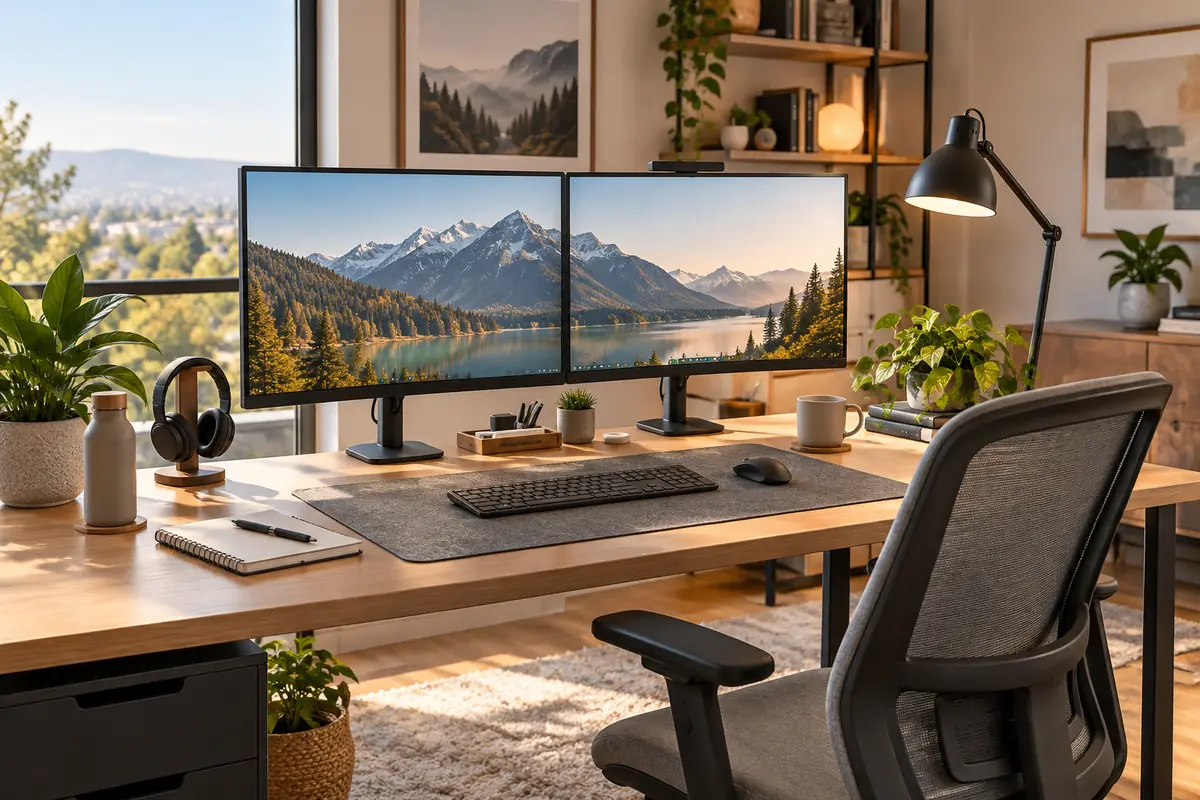
Best Monitor Setups for Your Home Office in 2026
The best monitor setup for most home offices is a dual 27-inch 4K configuration built around two Dell UltraSharp U2725QE monitors. The pair gives you sharp text, generous workspace, 120Hz refresh, strong ergonomics and unusually complete Thunderbolt, USB, KVM and networking connectivity.
Dual monitors are not the only good answer. A single ASUS ProArt PA32QCV 6K keeps the desk cleaner while providing extremely high pixel density. The Dell UltraSharp U3425WE replaces two screens with one 34-inch ultrawide, two Dell S2725DC monitors create a much less expensive dual-monitor workspace, and the unusual LG DualUp 28MQ780-B is excellent when vertical documents, code, communication windows or long web pages dominate your workday.
Before buying more screen space, check the computer’s supported number of external displays, desk depth and viewing distance. A technically impressive setup can still be uncomfortable if the displays are too high, too close or positioned so you constantly rotate your neck.
Quick Answer: Best Monitor Setups for Home Offices
Best Overall: Dual Dell UltraSharp U2725QE monitors — two 27-inch 4K 120Hz displays with Thunderbolt 4, strong daisy-chain connectivity, extensive USB hubs and KVM functionality.
Best Single-Monitor Setup: ASUS ProArt Display 6K PA32QCV — a 31.5-inch 6016 x 3384 display with Thunderbolt 4, 96W power delivery and a built-in KVM.
Best Ultrawide Setup: Dell UltraSharp U3425WE — a 34.1-inch 3440 x 1440 curved screen with 120Hz refresh, Thunderbolt 4 and a productivity-focused USB hub.
Best Budget Dual-Monitor Setup: Two Dell S2725DC monitors — 27-inch QHD panels with 144Hz refresh, USB-C and 65W laptop charging at a much lower cost than premium 4K monitors.
Best Vertical Workflow Setup: LG DualUp 28MQ780-B — a 27.6-inch 2560 x 2880 16:18 display with an included Ergo clamp stand, USB-C and built-in KVM.
How We Chose the Best Monitor Setups
We treated this as a workstation guide rather than a simple monitor ranking. Screen size and resolution matter, but so do viewing distance, desk space, display positioning, laptop connectivity, cable routing, monitor mounting and the number of computers you use.
We prioritized sharp text, useful workspace, ergonomic adjustment, USB-C or Thunderbolt connectivity, laptop charging, multi-monitor capability and current U.S. availability. We also looked at whether a setup solves a distinct problem rather than recommending several nearly identical 27-inch displays.
Discompare did not conduct laboratory monitor testing. Performance observations are based on current manufacturer specifications and independent testing, while ergonomic recommendations follow current OSHA workstation guidance.
Best Home Office Monitor Setups Compared
| Setup | Best For | Resolution | Refresh Rate | Laptop Power | Key Advantage | Main Tradeoff |
|---|---|---|---|---|---|---|
| 2 × Dell U2725QE | Best Overall | 2 × 3840 x 2160 | 120Hz | Up to 140W via Thunderbolt 4 | Huge workspace + premium hub connectivity | Expensive and physically wide |
| ASUS PA32QCV | Clean Single-Screen Setup | 6016 x 3384 | 60Hz | 96W Thunderbolt 4 | Extremely sharp 32-inch workspace | Premium price and only 60Hz |
| Dell U3425WE | Ultrawide Workspace | 3440 x 1440 | 120Hz | 90W Thunderbolt 4 | One uninterrupted wide desktop | Less pixel density than 4K alternatives |
| 2 × Dell S2725DC | Budget Dual Screens | 2 × 2560 x 1440 | 144Hz | 65W USB-C | Excellent workspace per dollar | No daisy-chain video output |
| LG DualUp 28MQ780-B | Vertical Workflows | 2560 x 2880 | 60Hz | 90W USB-C | Tall 16:18 workspace in a narrow footprint | Unusual aspect ratio is not ideal for every workflow |
How Should a Monitor Be Positioned?
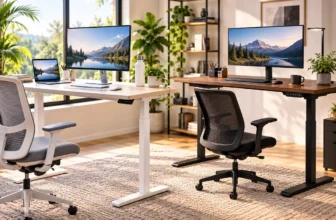
Start with position before deciding whether you need one screen, two screens or an ultrawide. OSHA recommends placing the main monitor directly in front of you, generally around 20–40 inches from your eyes, with the top of the screen at or slightly below eye level.
The center of the display normally sits somewhat below horizontal eye level. Raising a monitor too high can encourage you to tilt your head backward, while placing it too low may encourage forward neck posture.
If you use two monitors but spend most of your time on one, place the primary screen directly in front and the secondary display immediately beside it. If use is approximately equal, position the two screens side by side so you can move your eyes and head between them without large rotations.
Desk depth matters here. Our best home office desks guide explains why a deeper work surface gives you more freedom to position large displays at an appropriate distance.
Compare Current Monitor Prices
Monitor pricing changes quickly, especially for Dell business displays. The total cost of a dual-monitor setup also doubles many items that look inexpensive when viewed as a single-screen purchase.
Compare current offers only after deciding how many displays you actually need. A single 32-inch or 34-inch screen can sometimes cost less and create a cleaner workspace than two premium 27-inch monitors.


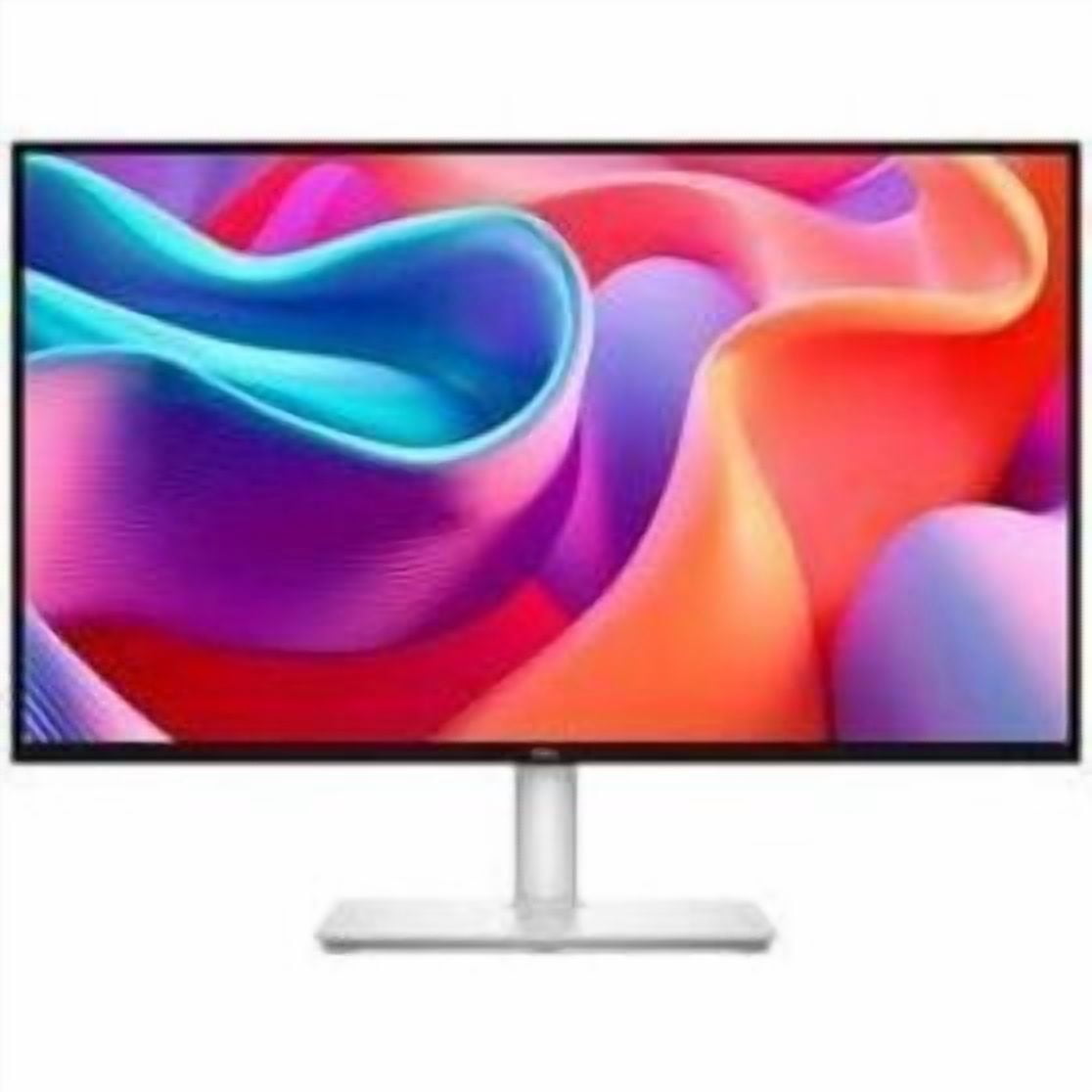
1. Dual Dell UltraSharp U2725QE Monitors — Best Overall Setup
Best For: Full-time home-office users, heavy multitaskers, developers, analysts and anyone who regularly keeps several applications visible at once.
The Dell UltraSharp U2725QE is unusually well suited to a premium dual-monitor setup because Dell built the monitor to function as both a display and a connectivity hub.
Each U2725QE uses a 27-inch 3840 x 2160 panel with a 120Hz refresh rate and 163 pixels per inch. Text is extremely sharp, while 120Hz makes scrolling and desktop motion smoother than a conventional 60Hz business monitor.
The connectivity is even more important. The monitor provides Thunderbolt 4 upstream with up to 140W EPR power delivery, Thunderbolt 4 downstream for daisy chaining, DisplayPort output, multiple USB-C and USB-A ports, 2.5Gb Ethernet and a KVM function.
That means one U2725QE can become the central connection point for a laptop, network connection, keyboard, mouse and second display on compatible systems. This can reduce the need for a separate Thunderbolt dock.
RTINGS currently names the U2725QE its best monitor for dual-display setups, specifically highlighting its Thunderbolt and DisplayPort outputs, extensive USB hub, KVM switch and sharp 4K text.
The setup does have two significant costs: money and desk width. Two 27-inch monitors need a substantial horizontal work surface. If you only use one application at a time, a premium dual-4K workstation can become expensive unused screen space.
Pros
✅ Two 27-inch 4K screens provide enormous usable workspace
✅ 120Hz refresh makes desktop motion and scrolling smoother
✅ Thunderbolt 4 and DisplayPort outputs support flexible multi-display connections
✅ Up to 140W laptop power delivery
✅ Extensive USB hub, KVM and 2.5Gb Ethernet reduce dock dependence
Cons
❌ Buying two creates a very expensive setup
❌ Requires significant desk width
❌ Host-computer multi-display support still needs verification
Setup tip: If one display holds your main task most of the day, center that monitor in front of you and angle the second display inward. If you use both equally, place the inner bezels near your central line of sight.
Who should skip it: If you dislike the physical break between two screens or have limited desk width, choose the Dell U3425WE ultrawide instead.

Experience true-to-life color and crisp 4K detail with the Dell UltraSharp U2725QE — factory-calibrated for 99% DCI-P3 and built for pro-level accuracy. Streamline your workspace with Thunderbolt 4 single-cable connectivity and unmatched IPS Black contrast — order yours today and elevate every project.
2. ASUS ProArt Display 6K PA32QCV — Best Single-Monitor Setup
Best For: Users who want maximum text clarity and workspace without surrounding themselves with multiple physical displays.
The ASUS ProArt PA32QCV takes the opposite approach from a dual-monitor workstation. Its 31.5-inch panel provides a 6016 x 3384 resolution and an unusually high 218 pixels per inch, creating exceptionally sharp text and interface elements when appropriate display scaling is used.
That resolution gives you considerable usable workspace while keeping the visual setup simple: one panel, one stand, one primary viewing direction and fewer display cables.
Connectivity is designed around modern laptops. Two Thunderbolt 4 ports support daisy chaining, while USB-C power delivery reaches 96W. ASUS also includes a KVM switch, USB hub, DisplayPort, HDMI and built-in speakers.
RTINGS selected the PA32QCV as its best work monitor in its September 2026 update, highlighting the 6K resolution, sharp text, large 32-inch screen, Thunderbolt connectivity and hub features.
The compromise is refresh rate. The PA32QCV runs at 60Hz, so users accustomed to 120Hz or 144Hz desktop monitors may notice less fluid scrolling and window movement.
This is also a premium monitor. If you mostly work in email, spreadsheets and browsers and do not particularly value extremely high pixel density, a conventional 4K monitor can provide better value.
Pros
✅ 6016 x 3384 resolution delivers excellent text clarity
✅ Large 31.5-inch panel supports several windows
✅ Two Thunderbolt 4 ports
✅ 96W laptop charging and built-in KVM
✅ Keeps the workstation visually simpler than dual monitors
Cons
❌ 60Hz refresh is less fluid than our Dell 120Hz options
❌ Premium pricing
❌ 6K output can demand more from the computer than QHD or 4K
Who should skip it: Users who prefer clearly separated application zones may still find two 27-inch monitors easier to manage than one large high-resolution canvas.
Alternative: Dual Dell U2725QE monitors for more total physical workspace and separate display zones.
Experience cinematic clarity and professional-grade color with the ASUS ProArt 32" 6K HDR10 Monitor. Calman Verified with 98% DCI‑P3 coverage and impressively low Delta E, it’s engineered for color-critical workflows and pixel-perfect post‑production. See more detail, work faster, and trust your results—upgrade your studio with ProArt today.
Order yours now and elevate your creative workflow.
3. Dell UltraSharp U3425WE — Best Ultrawide Monitor Setup
Best For: Multitaskers who want several windows side by side but dislike the bezel break of a dual-monitor workstation.
The Dell U3425WE uses a 34.1-inch curved 21:9 panel with a 3440 x 1440 resolution and 120Hz refresh rate. Its horizontal workspace is wide enough for documents, browsers, communication tools and spreadsheets to coexist without physically separating them across two displays.
For laptop users, the monitor includes Thunderbolt 4 with up to 90W power delivery. It also provides a large USB hub, 2.5Gb Ethernet and productivity features that make it practical as a docking monitor.
RTINGS identifies the U3425WE as a strong work-focused ultrawide, specifically noting its Thunderbolt hub, KVM capability and support for connecting another display if the setup later expands.
An ultrawide also simplifies ergonomics in one respect: there is only one panel to align. You do not have to match the height or angle of two stands.
However, ultrawide resolution is not automatically equivalent to two 4K screens. At 3440 x 1440, the U3425WE provides far fewer total pixels than a pair of U2725QE monitors. That is usually fine for office multitasking, but users prioritizing maximum text density may prefer 4K or 6K.
Pros
✅ Wide uninterrupted 21:9 workspace
✅ 120Hz refresh
✅ Thunderbolt 4 with 90W laptop charging
✅ Large USB hub and 2.5Gb Ethernet
✅ Cleaner physical setup than two monitor stands
Cons
❌ Lower pixel density than premium 4K or 6K options
❌ Wide screen still requires substantial desk space
❌ Some applications are easier to manage across physically separate displays
Who should skip it: If your workflow strongly benefits from dedicating one full monitor to a persistent app such as email, chat, reference material or monitoring dashboards, a dual-screen setup may be easier.
Alternative: Two Dell U2725QE monitors for a premium dual-display configuration.
Dell UltraSharp U3425WE 34" Curved Monitor delivers immersive UW‑QHD clarity and silky 120Hz performance, with a built‑in Thunderbolt 4 hub and over a dozen ports — including a 2.5GbE RJ45 — to streamline every connection. Upgrade your setup for smoother multitasking, faster transfers, and a cleaner desk with one powerful display. Buy now and experience the productivity boost.
4. Dual Dell S2725DC Monitors — Best Budget Dual-Monitor Setup
Best For: Buyers who want the practical advantages of two 27-inch displays without paying for dual premium 4K Thunderbolt monitors.
The Dell S2725DC is a 27-inch QHD display running at 2560 x 1440 and up to 144Hz. That resolution provides a useful step up from 1080p while remaining less demanding on a laptop or desktop than running two 4K screens.
The monitor also includes USB-C with DisplayPort Alt Mode and up to 65W power delivery, a small USB hub and built-in speakers. Its stand supports height, tilt, swivel and pivot adjustment.
RTINGS currently recommends the S2725DC as its budget dual-monitor choice, citing its USB-C connection, ergonomic stand and suitability for systems that may struggle with multiple high-resolution displays.
The most important limitation is connectivity between the two screens. Unlike the U2725QE, the S2725DC does not provide a DisplayPort or Thunderbolt video output for daisy chaining. A dual setup therefore requires the computer to support two external display signals directly or through an appropriate dock or adapter.
That is worth checking before ordering two monitors. Laptop marketing that says “USB-C” does not automatically guarantee that every USB-C port outputs video or supports the number of displays you need.
Pros
✅ QHD is a strong resolution for 27-inch office use
✅ 144Hz desktop motion
✅ USB-C with up to 65W laptop charging
✅ Fully adjustable stand
✅ Much lower pair cost than premium 4K Thunderbolt monitors
Cons
❌ No daisy-chain video output
❌ 65W charging may be insufficient for some higher-power laptops
❌ Text is less sharp than on 27-inch 4K displays
Who should skip it: Users who want one-cable Thunderbolt docking, integrated Ethernet and direct display chaining should move to a business-oriented monitor such as the U2725QE.
Alternative: Dell U2725QE when connectivity and 4K sharpness justify the added cost.

Dell 27-inch QHD USB-C 144Hz Monitor — experience stunning QHD clarity, silky-smooth 144Hz performance, and clutter-free USB‑C connectivity with up to 65W power delivery. With built-in speakers, TÜV-certified eye comfort, and a pop-out quick-access port, it’s the all-in-one upgrade for work and play. Order yours today and level up your setup — buy now while supplies last!
5. LG DualUp 28MQ780-B — Best Vertical Workflow Setup
Best For: Coding, long documents, research, communication tools, timelines and workflows that benefit more from vertical space than a wider conventional monitor.
The LG DualUp is unlike the other monitors in this guide. Its 27.6-inch Nano IPS panel uses a nearly square 16:18 aspect ratio and 2560 x 2880 resolution.
That shape essentially gives you two wide horizontal work zones stacked vertically inside one physical panel. A document can occupy the upper portion while communication, reference material or another application remains below it.
The included Ergo stand clamps to the desk and provides extensive height, tilt, swivel and extension adjustment. That is particularly valuable because a tall display must be positioned carefully to avoid forcing the upper part of the screen far above comfortable eye level.
USB-C carries video, data and up to 90W of laptop charging. LG also includes a built-in KVM, Picture-by-Picture support, two HDMI inputs, DisplayPort and 7W stereo speakers.
The unusual format can also save horizontal desk space compared with two monitors placed side by side. That makes the DualUp appealing on narrower desks where vertical room is available.
It is not a universal replacement for dual monitors. Wide spreadsheets, video timelines and applications designed around broad horizontal canvases may feel more natural on a conventional ultrawide.
Pros
✅ Unique 2560 x 2880 vertical workspace
✅ Narrower horizontal footprint than dual side-by-side monitors
✅ Included adjustable Ergo clamp stand
✅ USB-C with up to 90W laptop power
✅ Built-in KVM and Picture-by-Picture support
Cons
❌ 16:18 shape is unconventional
❌ Only 60Hz
❌ Tall screen must be positioned carefully to avoid excessive upward viewing
Who should skip it: If your applications depend on wide horizontal workspaces, a 34-inch ultrawide or conventional dual monitors will feel more natural.
Alternative: Dell U3425WE for one continuous horizontal workspace.
Transform your workspace with the LG DualUp 28MQ780-B — a unique 16:18 SDQHD Nano IPS display that gives you the vertical screen space of dual monitors without the clutter. With the Ergo C‑Clamp stand, USB‑C 90W charging, and DCI‑P3 98% HDR10 color, it’s built to boost focus and workflow.
Upgrade your setup today — Buy the LG DualUp now and reclaim your desk.
Dual Monitors vs Ultrawide: Which Setup Is Better?
Dual monitors are better when you want clear application separation; ultrawide monitors are better when you want one uninterrupted workspace.
Two monitors let you dedicate one display to a main task and another to reference material, email, communication tools or dashboards. They also let you rotate one display into portrait orientation.
An ultrawide eliminates the central bezel and usually needs fewer power and display cables. Window-management tools can divide the wide canvas into virtual zones while still allowing a large spreadsheet, timeline or document to span the full screen.
The disadvantage is failure concentration: when one ultrawide screen is unavailable, the entire visual workspace is gone. A dual-monitor setup can continue operating on one screen if the other is disconnected.
Should You Use Monitor Arms or the Included Stands?
Use the included stands when they provide enough height, tilt and swivel adjustment. Use monitor arms when you need more positioning freedom or want to reclaim desk depth.
A monitor arm can move a display farther backward than many bulky factory stands, which is particularly valuable on 24-inch-deep desks. Dual arms can also make it easier to align two panels at equal height.
Before buying a clamp mount, verify the monitor’s VESA pattern, panel weight and desk-edge compatibility. The desk also needs enough structural strength for the concentrated clamp load.
We keep specific clamp recommendations limited here because our upcoming Best Dual Monitor Arms for WFH in 2026 guide covers mounting hardware as a separate buying category.
How Far Should Monitors Be From Your Eyes?
OSHA generally recommends a viewing distance of about 20 to 40 inches from the eyes to the front of the screen, with text scaling adjusted so you do not lean forward to read.
Larger displays do not automatically need to be pushed as close as smaller ones. A 32-inch or ultrawide monitor may be more comfortable farther back, especially when application windows stretch toward the outer edges.
If your desk is too shallow to create a comfortable distance, a monitor arm or deeper desk is usually a better solution than forcing the chair backward until the keyboard becomes difficult to reach.
How High Should Your Monitor Be?
The top of the display should generally be at or slightly below eye level. OSHA places the center of the screen approximately 15–20 degrees below horizontal eye level for a typical workstation.
This is especially important with the tall LG DualUp and vertically rotated monitors. Do not raise a portrait display until the very top sits far above your normal line of sight simply because the stand allows it.
Users with bifocals or progressive lenses may need a lower display position to avoid tilting the head backward while viewing through the appropriate part of the lens.
How to Position Two Monitors Ergonomically
If one monitor receives most of your attention, keep that screen centered directly in front of your body. Place the secondary monitor immediately beside it and angle it inward enough that content can be viewed without repeatedly turning the torso.
If both displays are used about equally, position them symmetrically with their inner edges meeting near the center of your field of view.
Keep both panels at similar heights where practical. Different monitor models can be difficult to align because stand heights and bezel dimensions vary, which is one reason buying two matching monitors is usually easier.
Your seating position also matters. Our ergonomic office chairs guide explains how chair height and body position should work with the display and desk rather than being adjusted independently.
USB-C vs Thunderbolt for a Home Office Monitor
Both USB-C and Thunderbolt can potentially carry video, data and laptop power through one cable, but the labels alone do not tell you everything.
Check the monitor’s power-delivery wattage and the laptop’s charging requirement. The Dell S2725DC supplies up to 65W, while premium monitors in this guide provide 90W, 96W or up to 140W.
Also verify how many external monitors the laptop supports. A monitor having a video output does not guarantee that every computer or operating system can extend the desktop through that exact daisy-chain path.
Thunderbolt monitors generally provide more bandwidth and docking flexibility, but USB-C can be completely adequate for a straightforward single-monitor setup.
Do You Need 4K for Office Work?
No, but 4K gives noticeably sharper text at 27 and 32 inches. QHD remains an excellent balance of clarity, price and graphics demand for a 27-inch monitor.
The Dell S2725DC demonstrates that tradeoff well. Its 2560 x 1440 resolution is less sharp than the U2725QE’s 4K panel, but it is cheaper and easier for modest computers to drive as part of a two-screen setup.
At the premium end, 6K provides even higher pixel density, but most office users do not need that many pixels simply to work in email and documents.
Is 120Hz or 144Hz Useful for Productivity?
A higher refresh rate makes cursor movement, scrolling and window animations look smoother. It does not automatically make you more productive.
For users accustomed to 120Hz phones, tablets and laptops, returning to a 60Hz desktop can feel noticeably less fluid. That makes the 120Hz Dell UltraSharp models and 144Hz S2725DC pleasant to use.
Do not sacrifice resolution, connectivity or ergonomic fit solely to chase refresh rate for ordinary office tasks.
Home Office Monitor Cable Management
A clean monitor setup starts by separating cables that move from cables that should remain permanent.
Laptop USB-C or Thunderbolt cables should remain easy to reach. Permanent monitor power, Ethernet and DisplayPort cables can be routed through the stand, monitor arm or an under-desk tray.
For height-adjustable desks, test cable length at the desk’s highest position before securing everything. Leave enough service slack so moving the desk or monitor does not pull connectors.
Our office storage solutions guide covers under-desk cable trays and broader workspace organization in more detail.
What About a Laptop Screen as a Second Monitor?
A laptop can work well as a secondary display if it can be positioned without forcing you to look significantly downward or to the side for long periods.
For an intensive home-office setup, a laptop stand plus external keyboard and mouse usually works better than leaving the notebook flat on the desk beside a monitor.
If you spend most of your time on the external screen, center that monitor in front of you and treat the laptop as the secondary display.
Best Monitor Setup by Work Style
| Work Style | Recommended Setup | Why |
|---|---|---|
| Heavy multitasking | Dual Dell U2725QE | Two sharp 4K workspaces with excellent hub connectivity |
| Minimalist workstation | ASUS PA32QCV | Large 6K canvas without a second physical display |
| Wide spreadsheets and timelines | Dell U3425WE | Continuous 21:9 workspace |
| Value-focused dual screens | Dual Dell S2725DC | QHD, USB-C and 144Hz at a lower cost |
| Coding and long documents | LG DualUp 28MQ780-B | Tall 16:18 workspace with compact horizontal footprint |
A good display setup should also leave enough room for your keyboard and pointing device. Our upcoming Logitech keyboards for work and gaming guide covers input devices separately rather than treating monitor choice as the entire workstation.
Frequently Asked Questions
What is the best monitor setup for a home office?
For heavy multitasking, two matching 27-inch monitors are one of the most flexible arrangements. Our premium choice is a pair of Dell U2725QE 4K monitors, while one larger monitor or an ultrawide may be better for users who prefer a simpler desk.
Is one large monitor better than two monitors?
One monitor creates a cleaner workspace and avoids a central bezel. Two monitors make it easier to dedicate separate full screens to different applications. The better choice depends on how you arrange your work.
What size monitors are best for a dual setup?
Twenty-four- and 27-inch displays are common because two can fit side by side without becoming excessively wide. Two 27-inch monitors provide substantial workspace but need a reasonably large desk.
How far should a monitor be from my eyes?
OSHA generally recommends a comfortable viewing distance of around 20–40 inches. Increase text scaling rather than leaning forward if interface elements are too small.
Should the top of my monitor be at eye level?
The top of the display should generally be at or slightly below eye level so the center of the screen falls below your horizontal line of sight without requiring you to tilt your head upward.
Is an ultrawide monitor better than dual monitors?
An ultrawide is better when you prefer one uninterrupted canvas and fewer physical displays. Dual monitors are better when your workflow benefits from clearly separated applications or a portrait secondary screen.
Do I need a monitor arm?
No. A good adjustable factory stand may be sufficient. Monitor arms become useful when you need more positioning freedom, want to reclaim desk depth or need to align two displays more precisely.
Can I connect two monitors with one USB-C cable?
Sometimes. The monitor must support an appropriate daisy-chain output and the computer must support the required multi-display connection. Otherwise, you may need separate display outputs or a compatible dock.
Final Verdict: Which Monitor Setup Should You Build?
For a premium home office, two Dell UltraSharp U2725QE monitors provide the strongest overall balance of workspace, text clarity, high refresh rate and docking features. The setup is expensive, but few dual-monitor combinations integrate laptop power, networking, peripherals and second-display connectivity as cleanly.
Choose the ASUS ProArt PA32QCV if you want one exceptionally sharp screen instead of two physical displays. Choose the Dell U3425WE when an uninterrupted ultrawide desktop better matches spreadsheets, timelines and side-by-side windows.
Two Dell S2725DC displays offer the most sensible value option when QHD is sharp enough and your computer or dock can drive both screens. The LG DualUp is the specialist recommendation for vertical workflows and narrow desks.
Whatever setup you choose, placement matters more than adding maximum screen area. Keep the most important content directly in front of you, maintain a comfortable viewing distance and position the screen height so you can work without repeatedly turning or tilting your neck.
Bottom line: Build a dual U2725QE setup for premium multitasking, choose PA32QCV for a clean high-resolution single screen, use U3425WE for ultrawide work, pair two S2725DC monitors for value, or choose LG DualUp when vertical workspace matters most.
Sources
- U.S. Occupational Safety and Health Administration — Computer Workstations: Monitor Positioning and Evaluation Guidance
- RTINGS — The Best Monitors for Dual Setup
- RTINGS — The Best Work Monitors
- Dell — UltraSharp U2725QE, UltraSharp U3425WE and S2725DC Product Specifications
- ASUS and LG — ProArt PA32QCV and DualUp 28MQ780-B Product Specifications
Product Groups: Dell UltraSharp U2725QE 27-inch 4K Thunderbolt Hub Monitor, ASUS ProArt Display 6K PA32QCV, Dell UltraSharp U3425WE 34-inch Curved Thunderbolt Hub Monitor, Dell S2725DC 27-inch QHD USB-C Monitor, LG DualUp 28MQ780-B Monitor