Best Monitors for Designers 2026
The best monitors for designers combine accurate color reproduction, suitable resolution, reliable calibration, and connectivity that fits your creative workflow. For most graphic designers and UI/UX professionals, a 27-inch 4K IPS monitor with good factory calibration is a practical starting point. Photographers preparing images for print may need wider Adobe RGB coverage, while video editors working with HDR require substantially different display capabilities.
Our seven selections cover these different requirements. The ASUS ProArt PA279CRV offers a balanced 4K option for general creative work, while the PA278QV provides a more affordable QHD alternative. BenQ’s PD2730S and Apple’s Studio Display deliver sharper 5K images, and Dell’s U3225QE adds a larger workspace with extensive connectivity. For specialized color work, the EIZO ColorEdge CG2700X and ASUS PA32UCXR offer professional calibration and display capabilities.
However, specifications alone do not determine whether a monitor is suitable for your work. A display advertising 99% DCI-P3 coverage is not automatically more accurate than one with a smaller gamut. Factory calibration, uniformity, viewing conditions, and the color space required by your final output all matter.
This guide compares seven monitors for graphic design, UI/UX, photography, print production, and HDR content creation. We explain the specifications that matter, the trade-offs of each model, and when paying for a higher-resolution or professional-grade display makes sense.
Quick Answer: Best Monitors for Designers
Best for General Graphic Design: ASUS ProArt PA279CRV — a 27-inch 4K monitor with manufacturer-rated 99% Adobe RGB and DCI-P3 coverage, factory calibration, and 96W USB-C charging.
Best Budget Option: ASUS ProArt PA278QV — a 27-inch QHD monitor with 100% sRGB coverage and factory-rated Delta E below 2 for digital design.
Best 5K Alternative: BenQ PD2730S — a 27-inch 5K display with 218 PPI, 98% P3 coverage, and Thunderbolt 4 connectivity for detailed creative work.
Best for Mac Users: Apple Studio Display (2026) — a 27-inch 5K monitor with wide P3 color, 600-nit brightness, Thunderbolt 5, and integrated camera and audio.
Best for Color-Critical Work: EIZO ColorEdge CG2700X for print-focused workflows, or ASUS PA32UCXR when professional HDR capabilities are required.
How We Selected These Monitors
We selected seven monitors that address different creative requirements rather than choosing products solely by price, resolution, or advertised color coverage.
Our research considered official manufacturer specifications, independent monitor testing, factory calibration, color gamut, pixel density, panel technology, connectivity, ergonomic adjustments, and professional calibration capabilities.
For graphic design and UI/UX, we prioritized accurate sRGB reproduction, sharp text, usable workspace, and convenient laptop connections. For photography and print production, Adobe RGB coverage and repeatable calibration received greater attention. For HDR work, we considered peak brightness, local dimming, supported HDR formats, and hardware calibration.
Manufacturer specifications describe claimed capabilities under defined conditions. They do not guarantee identical performance across every individual unit. For color-critical work, actual calibration results and the viewing environment remain important.
Discompare did not conduct original laboratory testing of these monitors. Our recommendations are based on published specifications, independent research, and the requirements of different design workflows.
Best Monitors for Designers Compared
The following table summarizes the main differences between our seven selections. Reference prices reflect the U.S. listings reviewed during research and may change.
| Monitor | Best For | Display | Claimed Color Gamut | Calibration | Reference Price |
|---|---|---|---|---|---|
| ASUS PA279CRV | General graphic design | 27″ 4K IPS | 99% Adobe RGB / DCI-P3 | Factory-calibrated | $429 |
| ASUS PA278QV | Budget digital design | 27″ QHD IPS | 100% sRGB / Rec.709 | Factory-calibrated | $229 |
| BenQ PD2730S | 5K design workflow | 27″ 5K IPS | 98% P3 | Factory + supported calibration workflow | $1,099.99 |
| Dell U3225QE | Large creative workspace | 31.5″ 4K IPS Black | 99% DCI-P3 / Display P3 | Factory-calibrated | $969.99 |
| Apple Studio Display | Mac creative work | 27″ 5K Retina | Wide P3 | Apple reference modes | From $1,599 |
| EIZO CG2700X | Print and photography | 27″ 4K IPS | 99% Adobe RGB / 98% DCI-P3 | Built-in calibration sensor | Around $3,094 |
| ASUS PA32UCXR | Professional HDR | 32″ 4K Mini-LED | 99% Adobe RGB / 97% DCI-P3 | Built-in motorized colorimeter | Around $2,999 |
Important: Color-gamut percentages are manufacturer specifications, not directly comparable color-accuracy measurements. Prices are research references rather than live offers. Check the exact product configuration and current retailer listing before purchasing.
Our 7 Best Monitor Picks for Designers
1. ASUS ProArt Display PA279CRV — Best for General Graphic Design
Best For: Graphic designers, UI/UX professionals, digital artists, and photographers who want a color-focused 4K display without entering the premium professional-monitor price range.
The ASUS ProArt PA279CRV combines a 27-inch 3840 × 2160 IPS panel with wide color-gamut coverage and factory calibration. This combination addresses the everyday requirements of many creative applications, including Adobe Photoshop, Illustrator, Figma, and other digital design tools.
ASUS specifies 99% coverage of Adobe RGB and 99% of DCI-P3, alongside factory-rated color accuracy of Delta E below 2. These are useful specifications for a monitor intended to serve different types of creative work.
The 4K resolution provides approximately 163 pixels per inch at 27 inches. That gives designers a relatively sharp view of text, icons, vector artwork, and image details while leaving enough screen area for application panels.
Connectivity is another practical advantage. The PA279CRV includes USB-C with up to 96W power delivery, DisplayPort connectivity, HDMI, and a USB hub. A compatible laptop can use USB-C for video, data, and charging, reducing the need for separate connections.
The ergonomic stand supports height adjustment, tilt, swivel, and pivot. Portrait orientation may be useful for long layouts, editorial work, or vertically oriented artwork.
Its limitations become more apparent in specialized workflows. The panel refreshes at 60Hz, and its DisplayHDR 400 certification does not make it a professional HDR reference display. Designers who require controlled HDR grading should consider a monitor with more capable backlighting and verified HDR performance.
For general graphic design, however, the PA279CRV brings together several features that would otherwise require a more expensive purchase.
Pros
✅ Sharp 27-inch 4K IPS display.
✅ Manufacturer-rated 99% Adobe RGB and DCI-P3 coverage.
✅ Factory calibration and color-adjustment controls.
✅ USB-C with up to 96W power delivery.
✅ Adjustable stand with portrait rotation.
Cons
❌ Limited to a 60Hz refresh rate.
❌ HDR400 is not sufficient for professional HDR mastering.
❌ Color-critical work still benefits from individual calibration.
Who Should Skip It: Designers who specifically need 5K pixel density, a large 32-inch workspace, or specialized HDR production features.
Alternative: BenQ PD2730S provides 5K resolution and Thunderbolt 4, although it costs considerably more.
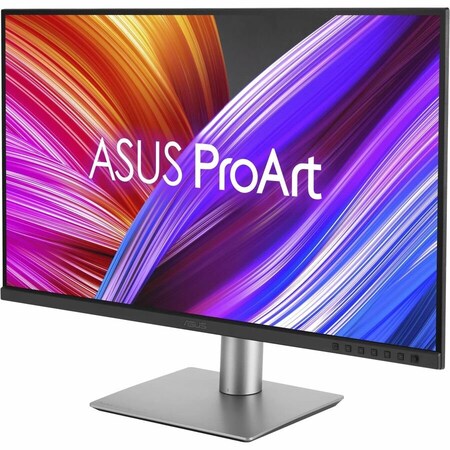
ProArt PA279CRV 27-inch 4K Monitor — Elevate your creative workflow with stunning 4K UHD clarity and a spacious 27" canvas built for precision. See every detail come to life and work with confidence on a display designed for professionals. Upgrade your setup today — order the ProArt PA279CRV now and transform the way you create.
2. ASUS ProArt Display PA278QV — Best Budget Monitor for Designers
Best For: Students, beginning graphic designers, UI/UX professionals, and digital creators working primarily with sRGB content.
The ASUS ProArt PA278QV offers a more affordable way to obtain a factory-calibrated design monitor. It uses a 27-inch IPS panel with a 2560 × 1440 resolution, commonly described as QHD.
ASUS specifies 100% sRGB and 100% Rec.709 coverage, factory-rated Delta E below 2, and Calman Verified calibration. These specifications make it relevant for common digital design workflows where sRGB is the intended output space.
For website interfaces, digital illustrations, presentations, and general content production, a well-configured sRGB monitor can be more useful than an expensive wide-gamut display used with incorrect color settings.
The PA278QV also includes ProArt Preset and ProArt Palette controls. These provide options for selecting color modes and adjusting display parameters.
Its 75Hz refresh rate offers slightly smoother desktop movement than a conventional 60Hz panel, although refresh rate is not the main reason to choose this monitor.
Compared with the PA279CRV, the most noticeable compromise is resolution. At 27 inches, QHD has approximately 109 pixels per inch, so fine text and image details appear less dense than on a 4K or 5K display.
The PA278QV also lacks the same modern USB-C docking and laptop-charging arrangement offered by higher-end ProArt models. Its connectivity includes DisplayPort, Mini DisplayPort, HDMI, DVI-D, and a USB hub.
Another consideration is model identity. ASUS also offers newer ProArt variants with similar names. Check that the retailer is selling the original PA278QV rather than the PA278QGV or another updated model with different specifications.
Pros
✅ 100% sRGB and Rec.709 coverage.
✅ Factory-calibrated IPS panel.
✅ Practical 27-inch working area.
✅ Lower reference price than the other featured monitors.
Cons
❌ QHD resolution is less sharp than 4K or 5K.
❌ No comparable USB-C laptop-charging feature.
❌ Less appropriate for workflows requiring extensive Adobe RGB coverage.
Who Should Skip It: Photographers who require a wide Adobe RGB workflow, designers prioritizing very sharp typography, or laptop users who need one-cable docking.
Alternative: ASUS PA279CRV provides 4K resolution, wider advertised color coverage, and more modern connectivity.
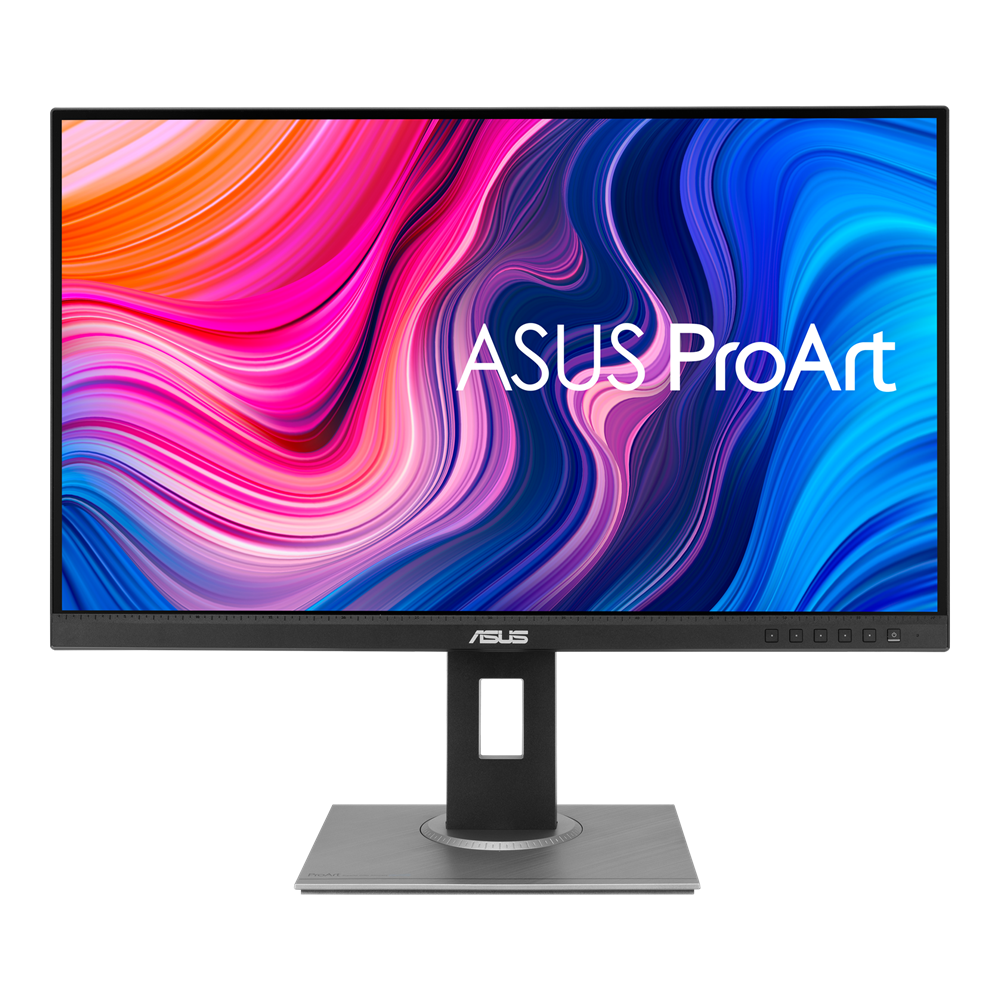
Upgrade your workspace with the ASUS ProArt PA278QV 27-inch WQHD IPS monitor.
With crisp 2560 x 1440 resolution and a 75 Hz refresh rate, it delivers sharp, smooth visuals ideal for productivity and casual gaming.
Bring clarity to your work and play — buy the ASUS ProArt PA278QV today and elevate your setup.
3. BenQ PD2730S — Best 5K Monitor for Designers
Best For: UI/UX designers, graphic designers, and creative professionals who want high pixel density, wide P3 coverage, and flexible laptop connectivity.
The BenQ PD2730S uses a 27-inch 5120 × 2880 IPS panel with a pixel density of 218 PPI. Its 5K resolution provides a particularly sharp canvas for typography, vector artwork, photographs, and detailed interface elements.
For designers accustomed to a high-density laptop display, moving to a lower-density external monitor can make text and interface elements appear noticeably different. A 27-inch 5K screen helps maintain a similar level of visual detail when used with appropriate scaling.
BenQ specifies 98% P3 coverage, 100% sRGB and Rec.709 coverage, factory-rated average Delta E of 2 or less, and a native contrast ratio of 2000:1.
The monitor also includes dedicated color modes, uniformity-related features, and compatibility with BenQ’s supported calibration software. These features are useful when working across different output spaces.
Thunderbolt 4 connectivity supports up to 90W power delivery, while an additional Thunderbolt output can support compatible downstream devices or display arrangements. The monitor also includes a KVM switch and BenQ’s Hotkey Puck G3 for convenient control.
This connectivity makes the PD2730S relevant to users switching between a laptop and desktop computer. However, the exact number of supported displays and available bandwidth depend on the connected computer and its Thunderbolt implementation.
The principal trade-offs are price and HDR performance. Its 60Hz refresh rate is adequate for many static design workflows, but users seeking smoother motion may prefer a higher-refresh display.
It also carries DisplayHDR 400 certification. That should not be confused with the local dimming and high peak brightness available on a professional HDR monitor.
Pros
✅ Sharp 5K resolution with 218 PPI.
✅ Manufacturer-rated 98% P3 coverage.
✅ Thunderbolt 4 with 90W charging.
✅ KVM and dedicated color controls.
✅ Designed for detailed creative workflows.
Cons
❌ More expensive than comparable-size 4K options.
❌ Limited to 60Hz.
❌ HDR400 is not professional HDR reference performance.
Who Should Skip It: Designers who are satisfied with 4K, need a much larger workspace, or prioritize professional HDR capabilities.
Alternative: Apple Studio Display offers a different 5K experience for Mac users, including integrated camera and audio features.
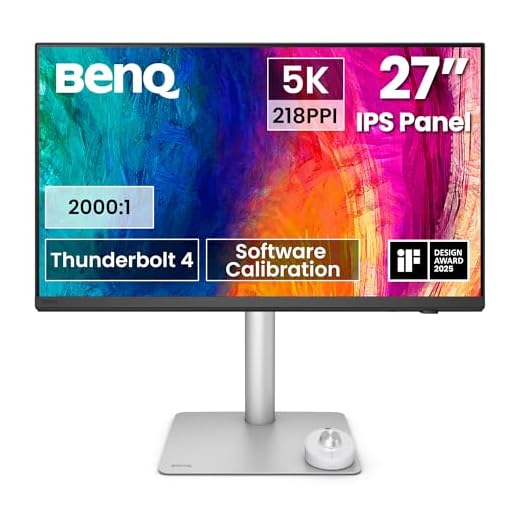
Get the BenQ PD2730S 27" 5K Monitor (Renewed) for retina-like 5120×2880 detail, 98% P3 color accuracy, Thunderbolt 4 power and transfers, and an eye-comfort nano matte panel. Order now to enjoy pro-grade color, seamless connectivity, and the built-in KVM that streamlines dual-system work. Add to cart and start designing with confidence today!
4. Dell UltraSharp U3225QE — Best Large Workspace for Designers
Best For: Designers who work with large application panels, multiple documents, complex timelines, and several connected devices.
The Dell UltraSharp U3225QE provides a 31.5-inch 3840 × 2160 display with IPS Black technology. Its larger physical size creates more room for viewing artwork and arranging creative applications.
Dell specifies 99% DCI-P3, 99% Display P3, 100% sRGB, and a typical native contrast ratio of 3000:1. It also advertises factory color accuracy with an average Delta E below 1.5.
The U3225QE differs from many traditional design monitors through its 120Hz refresh rate. This can make scrolling, window movement, and navigating large canvases feel smoother than on a 60Hz display.
Connectivity is a major feature. The monitor includes Thunderbolt 4 with up to 140W power delivery, a downstream Thunderbolt connection, USB ports, 2.5Gb Ethernet, and KVM functionality.
For a designer using a compatible laptop, these connections can reduce the need for a separate docking station. They are also useful when switching peripherals between two computers.
However, the larger display has a lower pixel density than a 27-inch 4K or 5K monitor. At approximately 140 PPI, the U3225QE offers more physical working space but does not match the fine-detail sharpness of the BenQ PD2730S.
Its P3 coverage also does not establish equivalent Adobe RGB coverage. Photographers preparing images for print should evaluate the intended print workflow before choosing this display solely because its color specifications look extensive.
For designers balancing creative work with general productivity, the larger canvas and extensive connectivity offer a distinct alternative to compact, higher-density monitors.
Pros
✅ Spacious 31.5-inch 4K display.
✅ IPS Black panel with high claimed contrast.
✅ Smooth 120Hz refresh rate.
✅ Thunderbolt 4 with up to 140W charging.
✅ Extensive USB, networking, and KVM features.
Cons
❌ Lower pixel density than 27-inch 5K displays.
❌ Requires more desk space.
❌ P3 coverage alone does not establish suitability for Adobe RGB print work.
Who Should Skip It: Designers whose primary requirement is maximum pixel density or a dedicated print-calibration workflow.
Alternative: BenQ PD2730S offers higher pixel density in a smaller 27-inch format.

Upgrade your workspace with the Dell UltraSharp U3225QE 32in 4K 120Hz TB4 — order yours today.
Enjoy stunning 4K detail, silky 120 Hz motion, and single‑cable Thunderbolt 4 power and data to simplify your desk setup.
Ready for pro-level color accuracy and seamless connectivity? Buy now and streamline your creative workflow.
5. Apple Studio Display (2026) — Best Monitor for Mac Designers
Best For: MacBook Pro and Mac Studio users who want a sharp 5K display with integrated macOS-oriented features.
The 2026 Apple Studio Display combines a 27-inch 5120 × 2880 Retina panel with 218 PPI, 600-nit brightness, and wide P3 color support.
The display also provides multiple reference modes, including options for photography, design and print, internet and web, and selected video standards. These modes help users configure the screen for different types of work.
Apple’s integrated features distinguish it from many conventional monitors. The 2026 version includes a 12MP Center Stage camera with Desk View, a six-speaker audio system, and a three-microphone array.
It also introduces Thunderbolt 5 connectivity, including an upstream connection with up to 96W host charging and a downstream connection for compatible accessories or display arrangements.
For a MacBook user, this creates a convenient desk setup with fewer separate accessories. The display can handle visual work, video calls, and common peripheral connections through a relatively simple arrangement.
Apple lists the standard Studio Display from $1,599 in the United States. Nano-texture glass and alternative stand configurations affect the final price.
The main limitation is its 60Hz refresh rate. It also should not be confused with the Studio Display XDR introduced in 2026. The XDR is a separate, more expensive product with Mini-LED backlighting, substantially greater HDR brightness, and a 120Hz refresh rate.
Designers using Windows or switching between multiple operating systems should examine compatibility and controls before purchasing the standard Studio Display. Many of its integrated features are designed around Apple’s ecosystem.
Pros
✅ Sharp 27-inch 5K Retina panel.
✅ Wide P3 color and useful reference modes.
✅ Thunderbolt 5 with 96W charging.
✅ Integrated camera, microphones, and speakers.
✅ Convenient integration with compatible Macs.
Cons
❌ 60Hz refresh rate.
❌ Higher starting price than mainstream 4K displays.
❌ Some configuration options increase the price.
Who Should Skip It: Designers who require professional HDR capabilities, prefer a larger screen, or need extensive cross-platform control.
Alternative: BenQ PD2730S provides a 27-inch 5K panel with Thunderbolt 4 and a different set of creative-workflow controls.
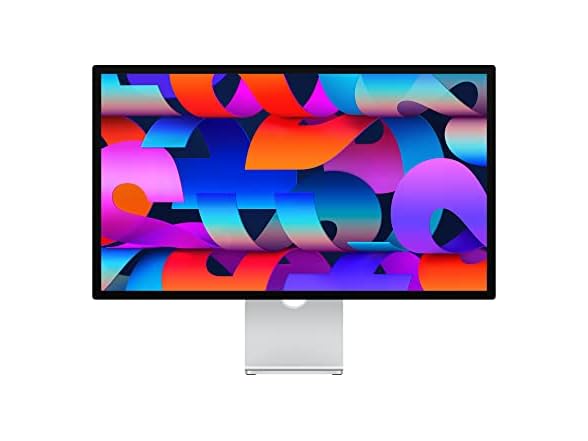
Experience every detail with the Apple Studio Display 27-inch Retina Monitor — stunning color, razor-sharp clarity, and a spacious canvas for creative and professional work. Upgrade your workspace and bring your projects to life with true-to-life color and incredible detail.
Order yours today and elevate your productivity — Buy now →
6. EIZO ColorEdge CG2700X — Best for Photo Editing and Print Design
Best For: Professional photographers, print designers, retouchers, and creative studios that require controlled, repeatable color reproduction.
The EIZO ColorEdge CG2700X is designed around professional color management rather than general office convenience. It uses a 27-inch 3840 × 2160 IPS panel with manufacturer-rated 99% Adobe RGB and 98% DCI-P3 coverage.
These color spaces matter for different reasons. Adobe RGB is relevant to some photography and print workflows, while DCI-P3 is associated with digital cinema and other wide-gamut applications.
The CG2700X includes a built-in calibration sensor that works with EIZO’s ColorNavigator 7 software. This allows the monitor to perform supported calibration tasks without requiring a separately attached measurement device for every routine adjustment.
Its hardware-calibration workflow is particularly valuable when maintaining consistent display behavior over time. For a studio managing multiple monitors, repeatability can be as important as the display’s initial factory specification.
EIZO also includes a shading hood, which helps reduce unwanted light reaching the display. This is useful in environments where reflections or inconsistent ambient lighting could affect visual judgments.
The monitor supports USB-C with up to 94W power delivery and offers other connectivity options suitable for professional workstations.
However, professional color management still requires more than a monitor. A suitable working environment, correct document profiles, compatible application settings, and, for print, an appropriate output profile all contribute to the final result.
The CG2700X is also expensive relative to conventional 4K displays. Designers working primarily on websites or simple digital illustrations may not need its specialized calibration features.
Although the monitor supports HDR-related formats, its 500-nit-class brightness does not make it equivalent to a high-brightness HDR reference display.
Pros
✅ Wide manufacturer-rated Adobe RGB coverage.
✅ Built-in calibration sensor.
✅ ColorNavigator 7 workflow support.
✅ Included shading hood.
✅ Professional color-management features.
Cons
❌ High purchase price.
❌ Specialized features may be unnecessary for everyday UI/UX work.
❌ Not a substitute for a high-brightness HDR reference monitor.
Who Should Skip It: Designers who primarily produce sRGB web content or do not require ongoing color-critical calibration.
Alternative: ASUS PA279CRV provides wide advertised color coverage at a much lower price, although it does not offer the same integrated professional calibration workflow.
7. ASUS ProArt PA32UCXR — Best for Professional HDR Content
Best For: Video editors, colorists, and creative professionals who require a high-brightness HDR display with extensive color controls.
The ASUS ProArt PA32UCXR is a 32-inch 3840 × 2160 monitor with Mini-LED backlighting and 2,304 local dimming zones.
Unlike conventional edge-lit displays, Mini-LED technology can control illumination across many separate areas. This allows the monitor to produce stronger contrast between bright highlights and darker regions when displaying suitable content.
ASUS specifies up to 1,600 nits of peak HDR brightness and 1,000 nits of typical brightness. It also advertises 99% Adobe RGB, 97% DCI-P3, and 87% Rec.2020 coverage.
The PA32UCXR includes a built-in motorized colorimeter and supports ASUS ProArt hardware-calibration functions. Its professional features also include HDR-related presets and support for formats used in different production workflows.
For a designer working with HDR footage, these capabilities address requirements that a typical SDR-oriented design monitor cannot fully reproduce.
However, Mini-LED is not free from compromises. Local dimming can produce visible halos around bright objects on dark backgrounds, depending on the content and display behavior. The presence of thousands of zones does not guarantee the absence of artifacts.
Peak brightness also does not establish every aspect of HDR performance. Actual measurements, uniformity, tone mapping, and behavior at different window sizes remain relevant.
The PA32UCXR is consequently a specialized purchase. A UI/UX designer working primarily in sRGB gains relatively little from paying for professional HDR capabilities that their projects do not require.
Pros
✅ Mini-LED backlighting with 2,304 local dimming zones.
✅ Manufacturer-rated 1,600-nit peak HDR brightness.
✅ Wide Adobe RGB and DCI-P3 coverage.
✅ Built-in motorized colorimeter.
✅ Professional HDR presets and calibration features.
Cons
❌ Expensive for general design work.
❌ Local dimming can produce visible haloing.
❌ Requires a suitable HDR workflow to justify its capabilities.
Who Should Skip It: Designers who work exclusively on conventional web interfaces, presentations, or basic SDR graphics.
Alternative: Apple Studio Display XDR offers a different professional HDR option for compatible Mac workflows. It is a separate model from the standard Studio Display.

Elevate your creative work with the ASUS ProArt 32" 4K HDR Mini‑LED Monitor — 32" Mini‑LED with 2,304-zone local dimming, 1600 nits peak / 1000 nits sustained for stunning HDR detail.
Built‑in colorimeter, Calman & ColourSpace support, true 10‑bit color (99% Adobe RGB, 97% DCI‑P3) and multiple HDR formats give you studio‑grade accuracy and flexibility.
Ready for any workflow with dual Thunderbolt 4 (90W PD), DisplayPort, HDMI and a USB hub.
Buy now and get 3 months of Adobe Creative Cloud (offer valid until 8/31/2026) plus a 5‑year warranty when you register — upgrade your color-critical work today.
What to Look for in a Designer Monitor
The most important monitor specifications depend on what you create and where the final work will be viewed. Color coverage, accuracy, resolution, and calibration should be evaluated together rather than treated as interchangeable measurements.
1. Color Gamut: sRGB, Adobe RGB, and DCI-P3
A color gamut describes the range of colors a display can reproduce. Different workflows use different color spaces, so the widest advertised gamut is not automatically the most useful choice.
- sRGB: A common working and delivery space for websites, interface design, and many digital graphics.
- Adobe RGB: Relevant to certain photography and print-production workflows that benefit from its wider coverage in parts of the green and cyan regions.
- DCI-P3: Associated with digital cinema. Related P3 color spaces are also used in modern displays and creative workflows.
- Rec.709: A widely used standard for SDR television and video content.
- Rec.2020: A wider color-space specification relevant to UHD and HDR video workflows.
For a UI/UX designer delivering sRGB assets, accurate sRGB reproduction is more important than simply purchasing a display with the largest advertised gamut.
For a photographer working with Adobe RGB image files and compatible print output, wider Adobe RGB coverage may provide a meaningful advantage.
2. Color Accuracy and Delta E
Color accuracy describes how closely a display reproduces intended colors under specified test conditions.
Delta E is a measurement of color difference. Lower values generally indicate smaller differences, but the measurement method, color space, test samples, and calibration state must be considered.
Several monitors in this guide advertise factory accuracy below Delta E 2. This is useful information, but it does not guarantee that every individual unit remains equally accurate throughout its lifetime.
For color-critical work, consider independent test results and whether the display supports a suitable recalibration process.
3. Resolution and Pixel Density
Resolution determines the number of pixels available, while pixel density describes how tightly those pixels are packed within the physical display.
At 27 inches, QHD provides approximately 109 PPI, 4K provides approximately 163 PPI, and 5K provides approximately 218 PPI.
Higher pixel density can make typography, interface details, and photographs appear sharper at suitable viewing distances. However, operating-system scaling affects how much usable workspace is available.
A higher-resolution display does not always provide proportionally more room for application windows if interface scaling is increased to maintain comfortable text size.
4. Panel Technology and Contrast
IPS panels are common in design monitors because of their viewing-angle characteristics and suitability for color-focused applications.
IPS Black variants can provide higher native contrast than many conventional IPS panels. OLED offers a different approach with per-pixel illumination, while Mini-LED uses multiple backlight zones.
Each technology has trade-offs. OLED requires consideration of static-content retention and manufacturer-supported protection measures. Mini-LED can produce local-dimming artifacts, and ordinary IPS displays typically have more limited black levels.
Choose according to your work rather than assuming one panel technology is universally superior.
5. Calibration and Uniformity
Factory calibration provides a starting point, but professional color workflows may require periodic recalibration.
Uniformity also matters. A display can reproduce a color accurately near the center while appearing different toward its edges. This becomes relevant when editing large photographs, full-width artwork, or color-critical layouts.
Professional monitors may offer uniformity compensation or integrated calibration systems to help maintain consistent behavior.
6. Connectivity and Laptop Charging
USB-C and Thunderbolt can simplify creative workstations by carrying video, data, and power through compatible connections.
Check the monitor’s power-delivery specification against your laptop’s charging requirements. A 90W connection may be adequate for one system but insufficient to maintain full performance on another under heavy load.
Also verify whether the monitor supports the resolution, refresh rate, and downstream connections you intend to use with your specific computer.
Best Monitor Specifications by Design Workflow
Different creative disciplines place different demands on a display. Use the following table to identify the specifications most relevant to your work.
| Workflow | Color Priority | Resolution | Important Features |
|---|---|---|---|
| UI/UX and Web Design | Accurate sRGB | QHD, 4K, or 5K | Sharp text, scaling, useful workspace |
| Graphic Design | sRGB and suitable wide gamut | 4K or 5K | Calibration, uniformity, viewing comfort |
| Photography and Print | Adobe RGB where required | 4K or higher | Repeatable calibration and output profiles |
| SDR Video Editing | Rec.709 | 4K when appropriate | Accurate video mode, timeline space |
| HDR Content Creation | Appropriate P3 / Rec.2020 workflow | 4K or higher | HDR brightness, contrast, tone mapping, calibration |
4K vs. 5K Monitors for Designers
A 5K display provides more pixels than a 4K display, but the practical difference depends on screen size, scaling, and how closely you inspect your work.
At 27 inches, a 5K panel has 5120 × 2880 pixels, compared with 3840 × 2160 for 4K. That creates a substantial increase in pixel density.
For designers working with typography, icons, vector artwork, and detailed imagery, the additional density can improve the appearance of fine details when used with appropriate scaling.
However, 4K remains a practical choice for many professional workflows. It provides sharp output at common desktop sizes and is available across a wider range of budgets.
A 32-inch 4K monitor also offers a different experience from a 27-inch 5K display. The larger panel creates more physical room for application windows, while the smaller 5K screen provides greater pixel density.
Practical rule: Choose 5K when high pixel density is important to your workflow. Choose 4K when its clarity is sufficient and other features, such as screen size, calibration, or HDR performance, matter more.
Do Designers Need Hardware Calibration?
Hardware calibration is valuable when consistent color reproduction is important, but it is not mandatory for every creative workflow.
Factory calibration establishes an initial display state. Over time, brightness and color behavior can change, making periodic verification useful.
Software-based calibration commonly adjusts the computer’s graphics output and creates or updates a display profile. Supported hardware-calibration systems can write corrections to the monitor’s own internal processing.
The latter can be useful when a monitor is shared between computers or when consistent behavior is required independently of one system’s graphics adjustments.
For example, the EIZO CG2700X includes a calibration sensor and ColorNavigator workflow. The ASUS PA32UCXR also incorporates a motorized colorimeter and hardware-calibration functionality.
Before buying calibration equipment, check the monitor’s supported calibration method, operating-system compatibility, measurement-device requirements, and software support.
Important: Calibration does not expand a monitor’s physical color gamut or transform an ordinary SDR display into a professional HDR reference monitor. It helps the display reproduce supported colors more consistently within its capabilities.
Should Designers Use One Monitor or Two?
A single high-resolution monitor can provide enough space for many design workflows. Two monitors become useful when you regularly need reference material, communication tools, or multiple applications visible at the same time.
For example, a UI/UX designer may prefer one display for Figma and another for documentation or a browser preview. A photographer may prefer one calibrated screen for image editing and a second display for file management.
However, two monitors do not automatically produce a better color workflow. If they differ in panel technology, calibration, brightness, or color mode, the same image can appear different between them.
For color-critical work, perform final visual judgments on the designated calibrated display.
Our guide to best monitor setups for your home office compares dual-monitor, ultrawide, and high-resolution single-screen arrangements in greater detail.
If you choose two displays, consider desk width, mounting compatibility, and viewing distance. Our best dual monitor arms guide explains how to match display weight, VESA patterns, and desk mounting requirements.
A larger 32-inch screen may also require greater desk depth to maintain a comfortable viewing distance. See our best home office desks for productivity guide for practical workspace considerations.
Frequently Asked Questions
What is the best monitor for graphic design?
A 27-inch 4K IPS monitor with accurate color reproduction is a practical choice for many graphic designers. The ASUS ProArt PA279CRV offers wide manufacturer-rated color coverage, factory calibration, and USB-C connectivity. Specialized workflows may require different features.
Is a 4K monitor necessary for designers?
Not always. QHD can be sufficient for many web and digital design tasks, particularly on a limited budget. A 4K or 5K display provides greater pixel density and may be more suitable for detailed image work and sharp typography.
Is 5K better than 4K for graphic design?
A 27-inch 5K display offers greater pixel density than a 27-inch 4K display, which can improve the appearance of fine details. However, color accuracy, calibration, screen size, and price may be more important for some workflows.
What color gamut should a designer’s monitor support?
Accurate sRGB coverage is important for common web and digital design work. Adobe RGB may be relevant to photography and print, while P3-related spaces are useful in selected wide-gamut and video workflows. Choose according to the intended output.
Do graphic designers need an OLED monitor?
No. IPS monitors remain practical for many color-focused workflows. OLED offers strong black levels and contrast, but static interface elements and retention considerations should be evaluated when choosing a display for long design sessions.
How often should I calibrate my monitor?
Follow the manufacturer, calibration-software, and project requirements. Color-critical professional workflows may require more frequent verification than general digital design. Stable viewing conditions and correct color profiles are also important.
Is the Apple Studio Display suitable for Windows?
Some display functionality may be available with compatible Windows hardware, but integrated features and controls are designed primarily for Apple’s ecosystem. Check the exact computer, connection requirements, and supported functions before purchasing.
Final Verdict: Which Monitor Should You Choose?
The right monitor depends on whether your work prioritizes accurate web colors, extremely sharp text, large workspace, print reproduction, or HDR production.
For general graphic design and UI/UX, the ASUS ProArt PA279CRV offers a balanced combination of 4K resolution, wide advertised color coverage, and practical connectivity. The PA278QV serves designers who primarily work in sRGB and want to limit their budget.
BenQ PD2730S and Apple Studio Display provide 5K clarity for detailed creative work, with different connectivity and ecosystem considerations. Dell U3225QE is useful when a larger workspace and docking features are priorities.
For professional photography and print production, the EIZO ColorEdge CG2700X offers a dedicated calibration workflow. The ASUS PA32UCXR addresses a different requirement through its Mini-LED backlight, high HDR brightness, and professional color controls.
Your Designer Monitor Buying Checklist
☐ Identify your primary design workflow and delivery color space.
☐ Choose an appropriate resolution and screen size.
☐ Check color-gamut coverage and independent accuracy evidence.
☐ Confirm the required calibration method and software support.
☐ Verify laptop charging, video connections, and operating-system compatibility.
☐ Measure desk depth and check ergonomic adjustment options.
☐ Compare current prices for the exact model and configuration.
Choose the monitor that supports your actual output requirements rather than purchasing the most expensive panel available. A correctly configured 4K display can serve many professional designers effectively, while specialized calibration and HDR features become worthwhile when your work depends on them.
Discompare prepares product recommendations using manufacturer documentation, independent editorial research, and available retailer information. We may earn commissions when readers purchase through qualifying retailer or price-comparison links, at no additional cost to them. Prices and availability may change.
Sources
- RTINGS — The Best Monitors for Graphic Design
- ASUS — ProArt Display PA279CRV, PA278QV, and PA32UCXR Technical Specifications
- BenQ — PD2730S Technical Specifications and Calibration Features
- Apple — Studio Display Technical Specifications
- EIZO — ColorEdge CG2700X Technical Specifications and Calibration Documentation
Product Groups: ASUS ProArt Display PA279CRV, ASUS ProArt Display PA278QV, BenQ PD2730S, Dell UltraSharp U3225QE, Apple Studio Display 2026, EIZO ColorEdge CG2700X, ASUS ProArt PA32UCXR